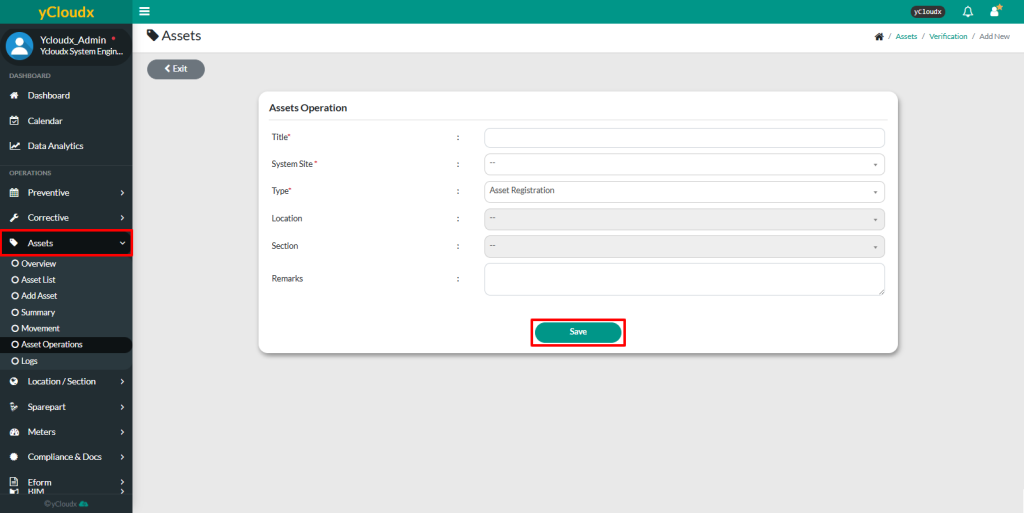
Fill in the details such as the Title, System Site, Type (Asset Verification), Location, Section and Remarks (if any)
After ensuring all data is entered correctly, then click Save button
Once saved, the system will bring user to the second page
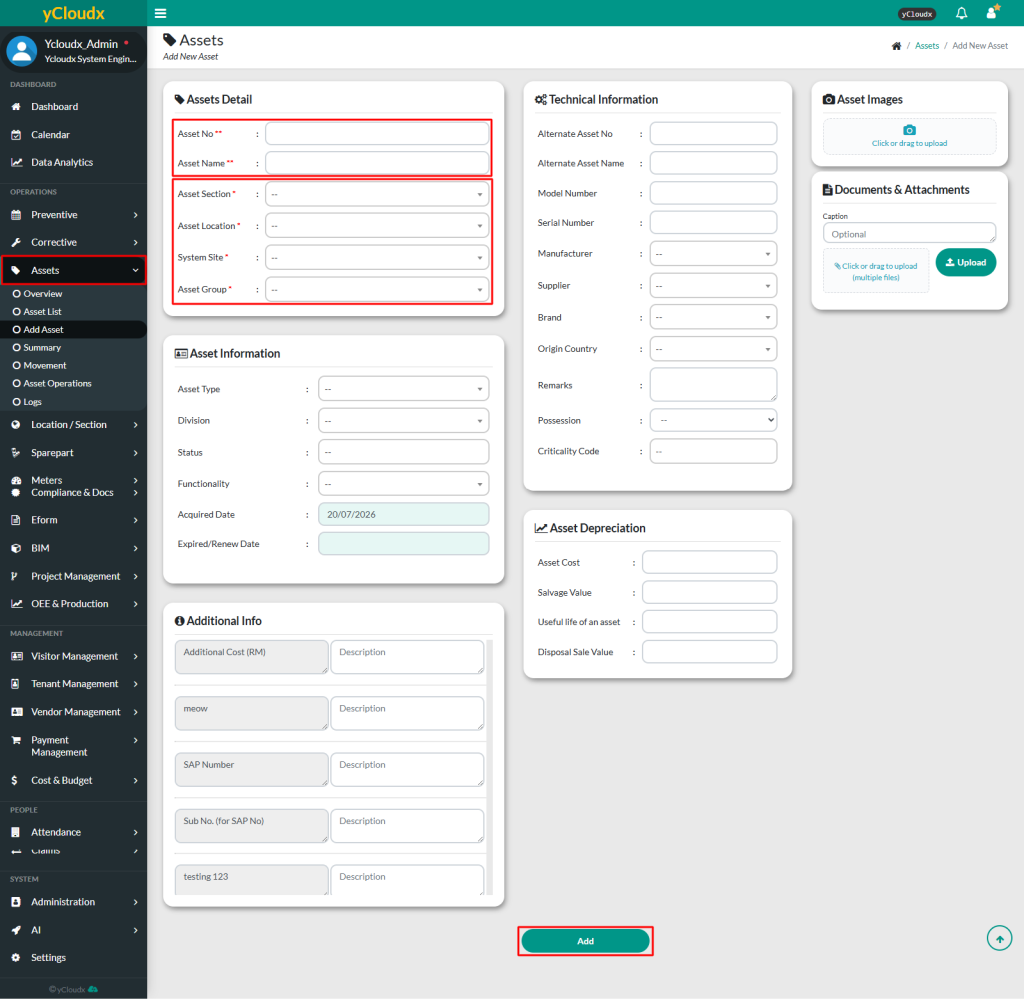
On the second page, user are required to fill in all asset details in the provided field to complete the registration process
The text fields marked with (**) must be unique for each asset and must be filled in such as Asset No and Asset Name
The text fields marked with (*) are mandatory, such as Asset Section, Asset Location, System Site and Asset Group. Others are optional but it is best to fill in all
User able to add any other additional information such as asset information, additional info, technical information, asset depreciation and attachment / picture (if any)
Click Add button to submit the new asset after all the information needed has been filled in
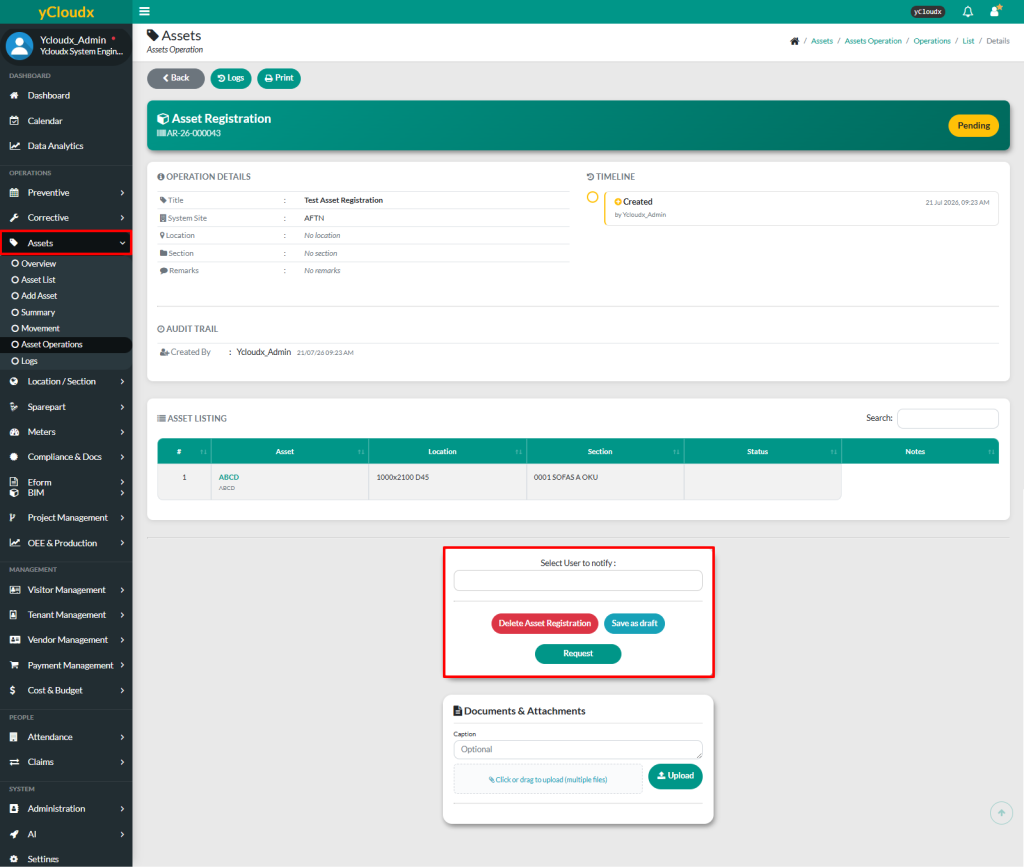
The system will bring user to the next page. Click the Request button to submit the asset registration request
Once submitted, the asset registration can be viewed under Assets > Asset Operations. The asset will only appear under Assets > Asset List after the asset registration has been approved by the person in charge (PIC)
A pop-up notification will appear to inform that the asset registration has been successfully submitted and the status will be updated from Pending to Verify