Skip to main content
How Can We Help?
How to View The Roster And The Event ?
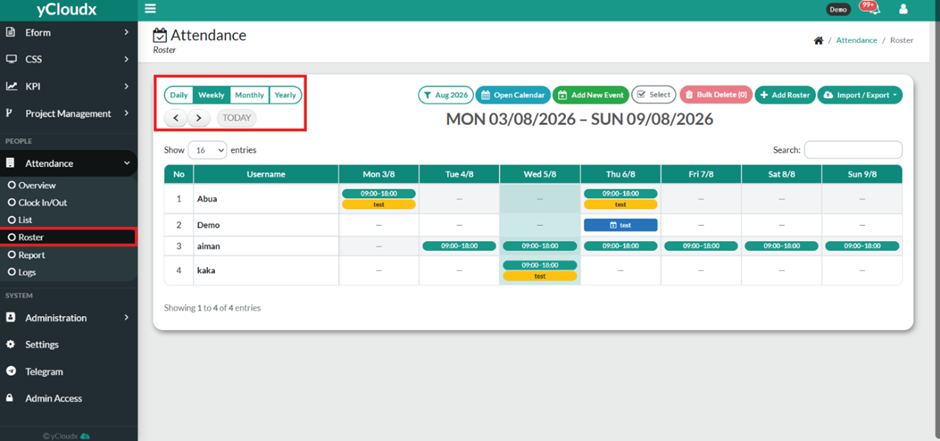
- Proceed to Attendance > Roster.
- The roster that have been added will be yellow coloured with the green coloured shift time that have been added.
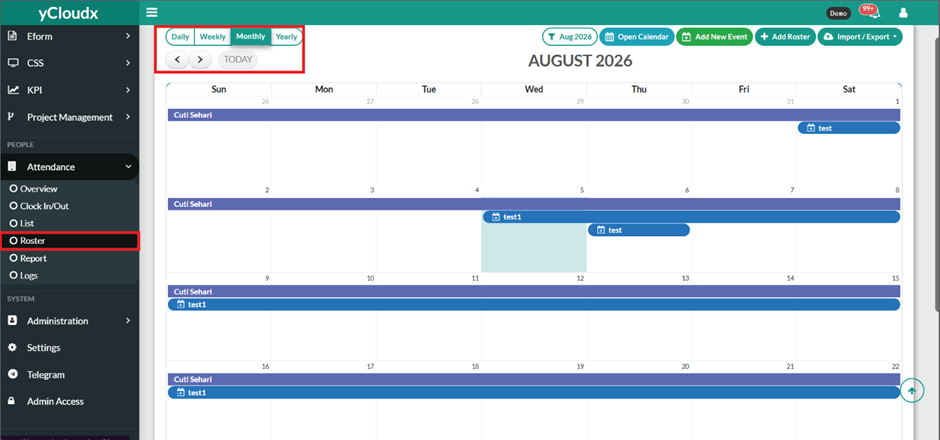
- Meanwhile the event that have been added will be blue coloured.
- Select the preferred view (Daily, Weekly, Monthly, or Yearly) according to the situation and your preference.
- Navigate to the desired date using the Previous, Next, Today, or Open Calendar button.
- View the roster schedule displayed for each employee.
- Use the Search box to locate a specific employee or the event that have been added if required.
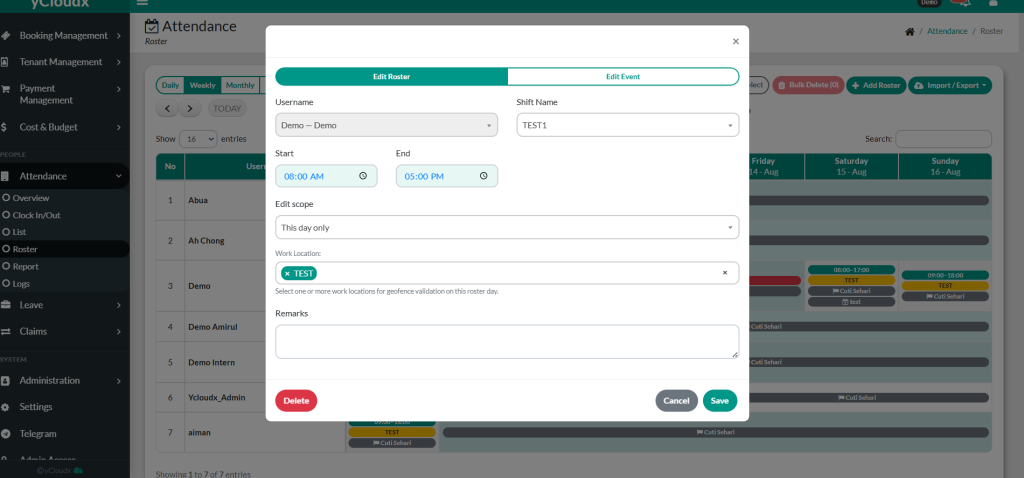
- You can Edit or Delete the roster or event by just clicking the button of event or roster displayed on the table on the specific date.
Weekly view
Monthly view
Edit or Delete