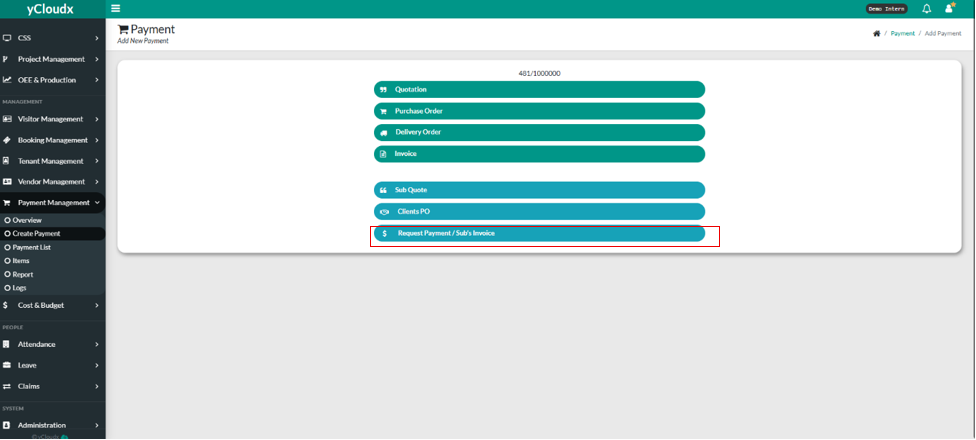
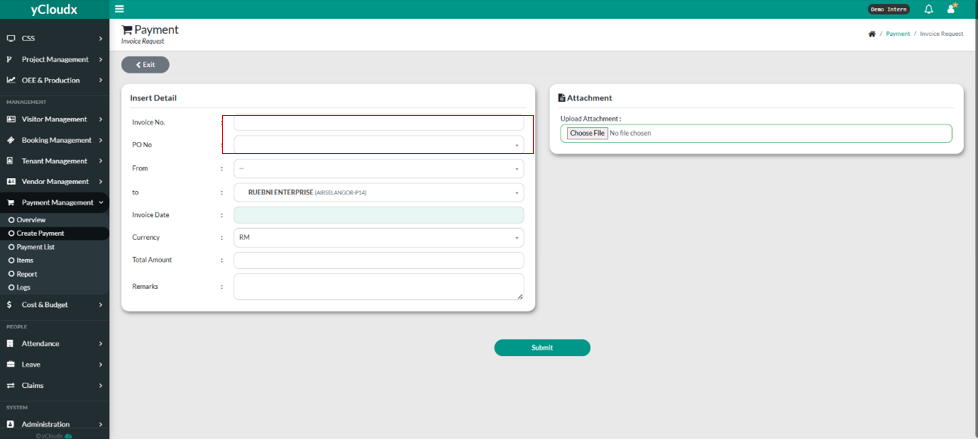
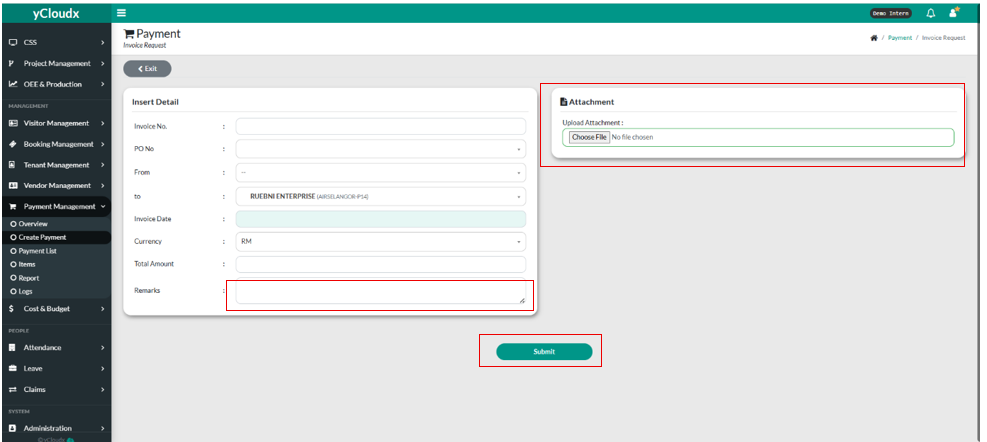
User need to fill in Invoice Number by fill it in the textbox.
User need to fill in PO Number by fill it in the textbox
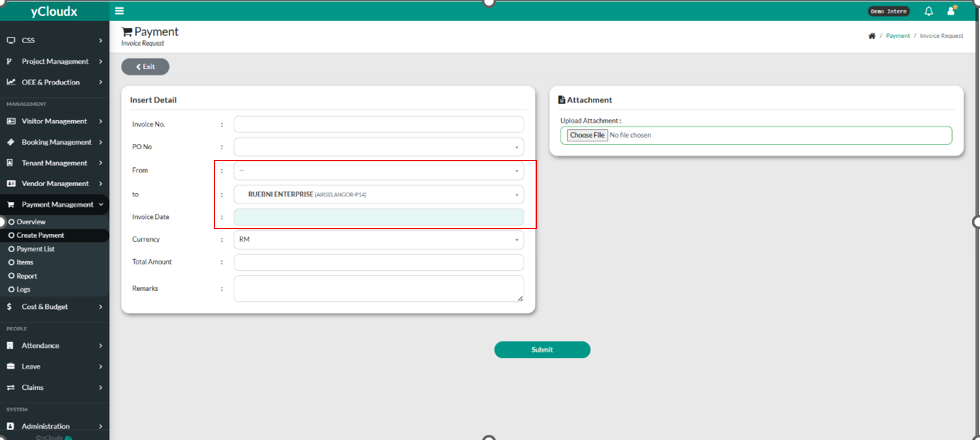
User need to fill in From where and To where in their respective textbox.
User need to fill in the invoice date in the “ Invoice Date“
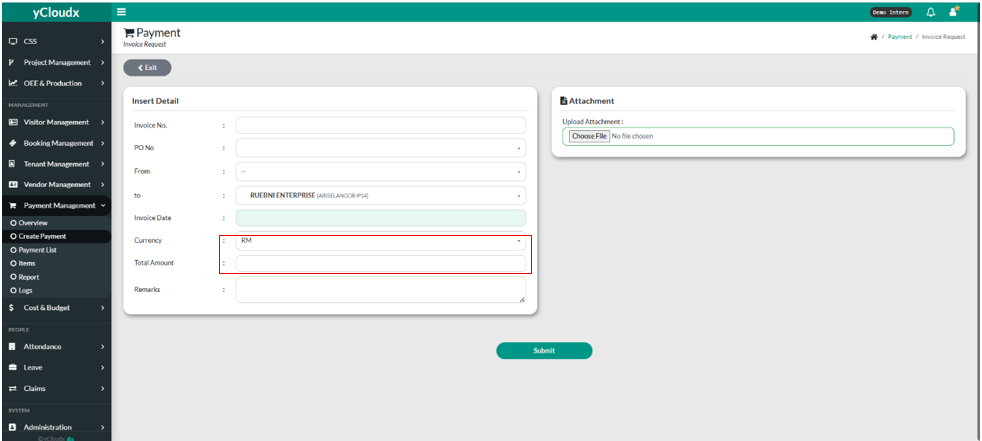
User can choose either 4 currency they want to use ( MYR, Baht, Dollar, US Dollar).
User need to fill in the amount in the “ Total Amount” text box.
User need to fill in the remarks by fill it in the “Remarks” text box.
User can upload attachment by clicking “Choose File” button.
User can submit the sub quote by clicking “Submit” button
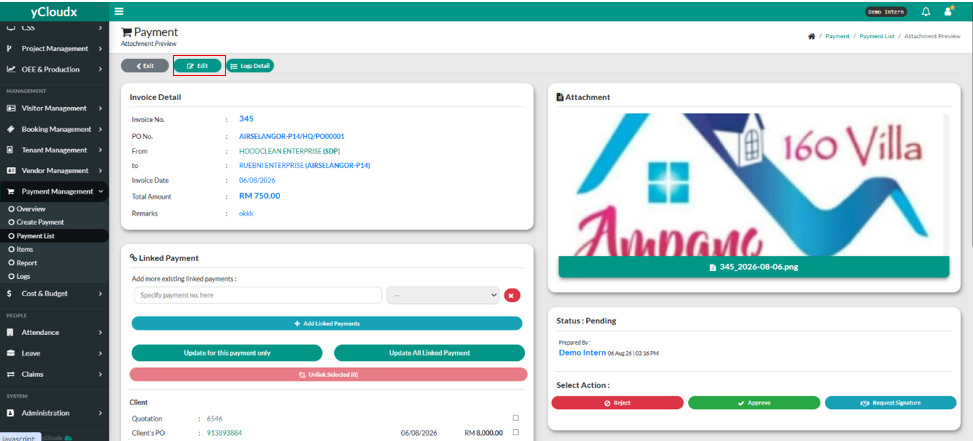
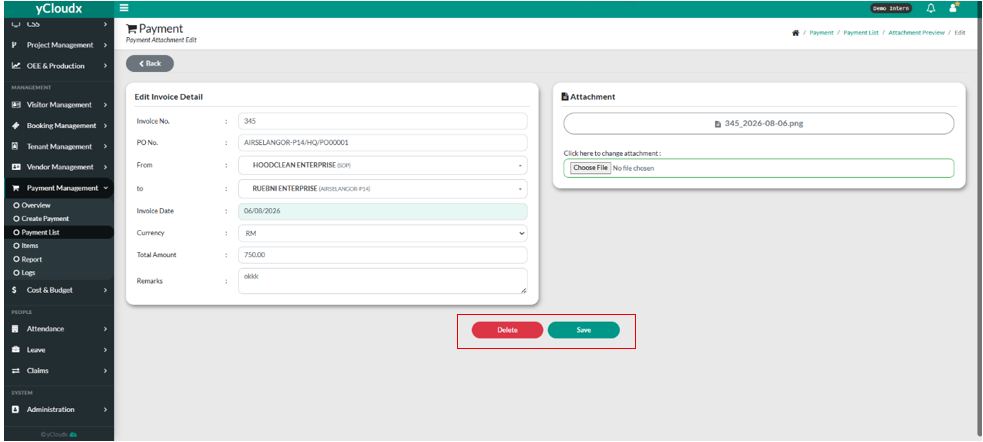
User can edit the Attachment Preview by clicking the “Edit” button.
User can delete the Invoice by clicking the “Invoice” button or save the invoice by clicking “Save” button
User can change the attachment (if needed) by clicking “Choose File” button.
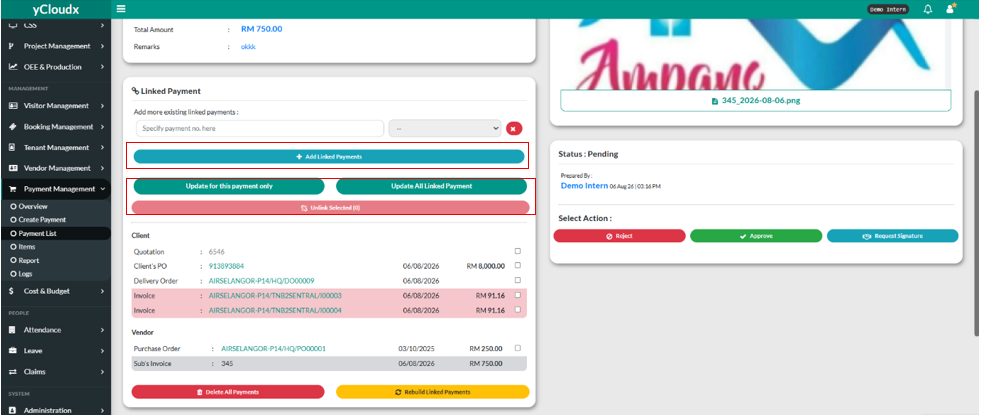
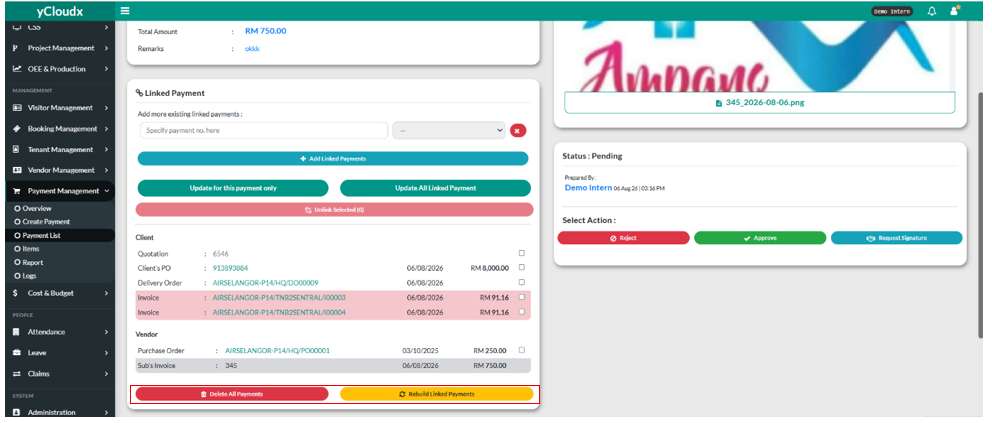
After that, user can add linked payment by clicking “+ Add Linked Payments” , fill in the specify payment number in the text box and also choose the document type.
Then, user can choose whether user want to update for this payment only, or user want to update all linked payment with clicking the button.
User also can unlink the selected payment by clicking the “Unlink Selected” button.
User also can choose to delete all payments by clicking “ Delete All Payments “ and also can rebuild linked payments by clicking “Rebuild Linked Payments”.
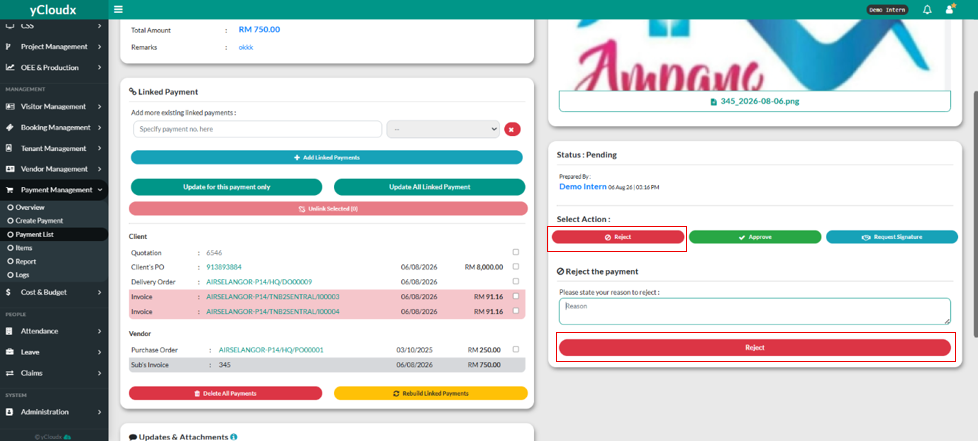
User can choose to reject the invoice by clicking “ Reject” button.
If user rejects the purchase order, they need to state the reject reason in the textbox and click “Reject” button.
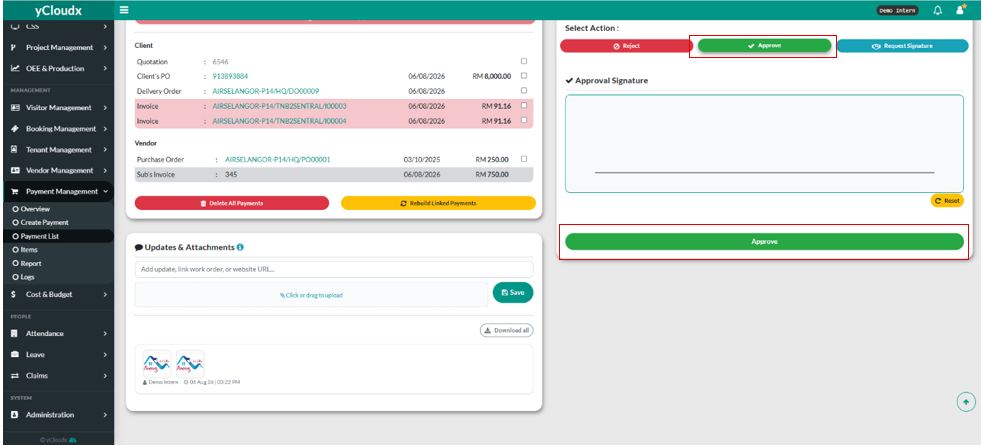
User can choose to approve the quotation by clicking “ Approve” button.
The system will ask user to make the approval signature.
After that, click the “Approve” button
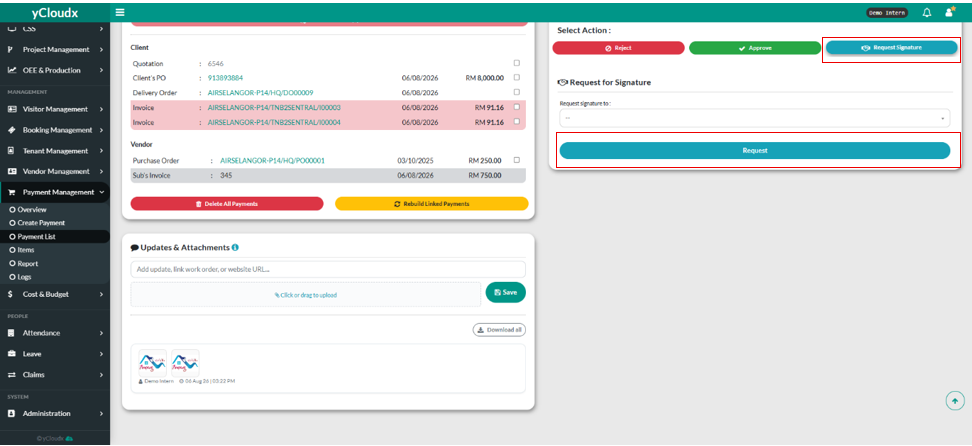
User can make a request for signature by clicking “ Request for Signature “ button.
User need to choose the person for request the signature and clicking “Request” button.
User can add attachments by clicking “ Click or drag to upload” and need to click “Save” to make the attachment saved.