How Can We Help?
How to set preventive maintenance notification?
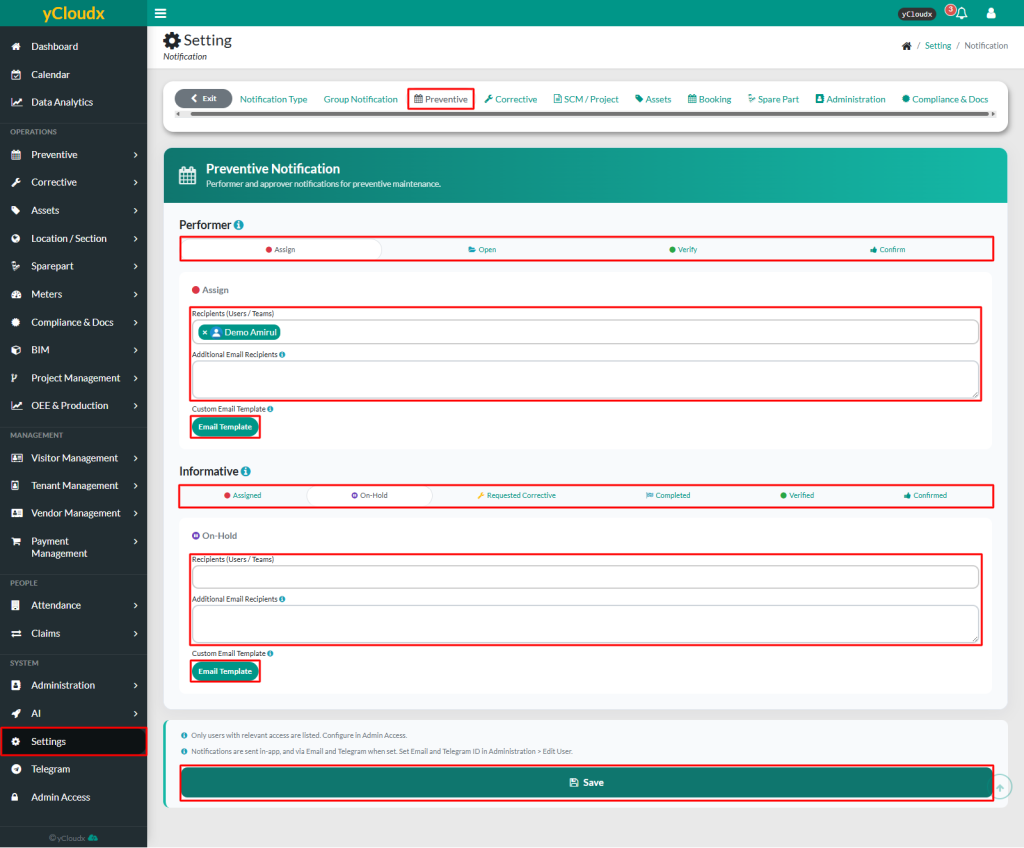
- Proceed to Setting > Notification > Preventive Maintenance
- Under Performer or Informative, select the notification status to be configured
- Select the recipient(s) from the list (Users / Teams)
- Enter additional email recipients in the Additional Email Recipients field if required
- Click Email Template to configure a custom email template for the selected notification status if needed
- Repeat steps 2 to 5 for other notification statuses
- After ensuring all data is entered correctly, click Save button
Notification status description
- Assign : Work order is generated
- Verify : Technician completed the work order and it is waiting for verification
- Confirm : Work order has been verified and is waiting for confirmation
- Requested corrective maintenance : After a user request to create a corrective work order
**Notes – Only users with relevant access will be listed in the recipient selection field