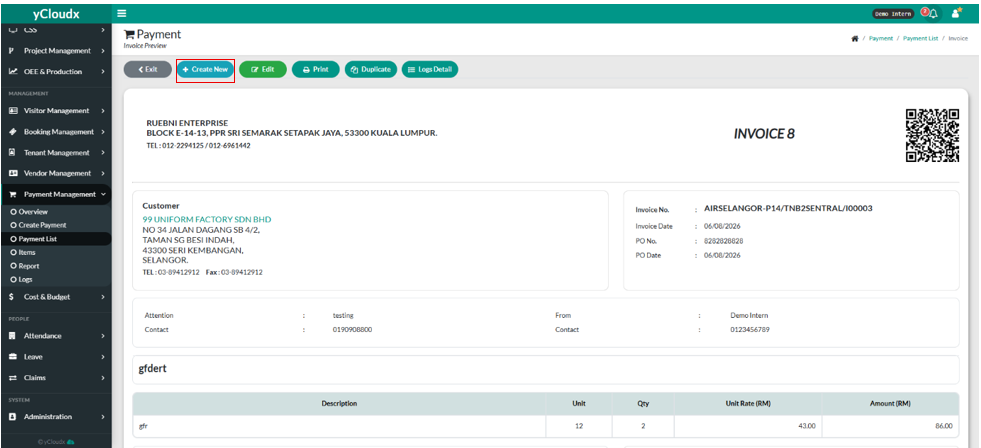
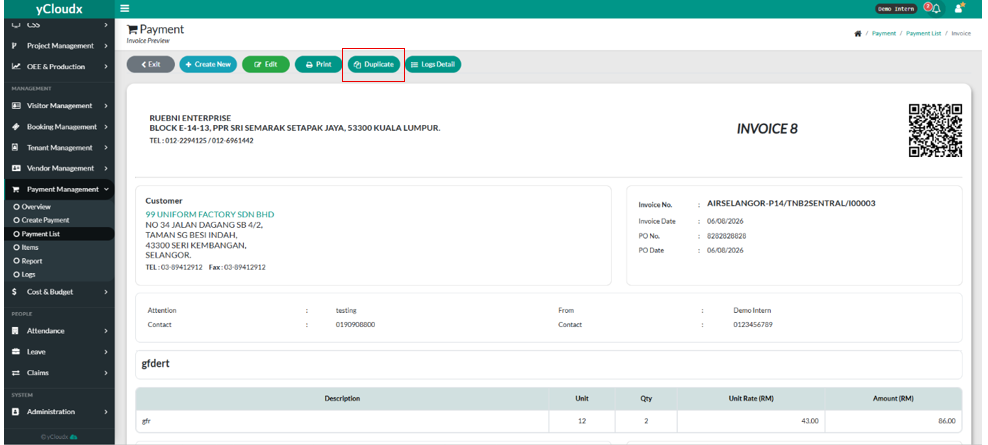
After clicking “Create” button on the previous page, it will directly bring you to Invoice Preview.
In this page, user can see all of the things that user has filled in the invoice.
User can create new purchase order by clicking “+Create New”
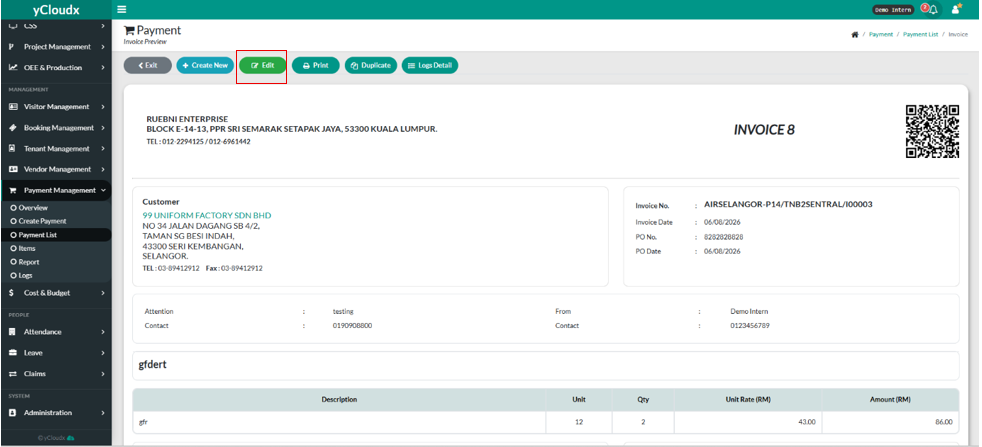
User can edit the purchase order by clicking “ Edit “ button
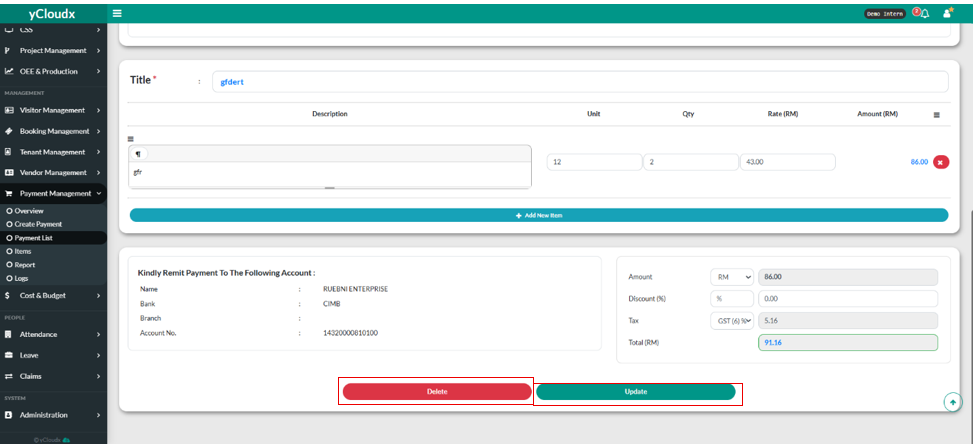
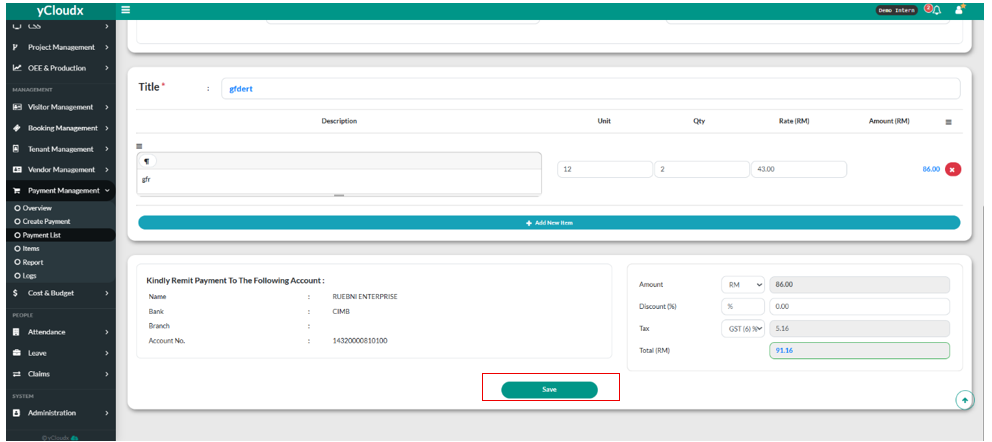
User can edit all the details they want to change by fill in the text box
User can delete the Invoice by clicking the “ Delete” button, and also click “ Update” button if user have done updating
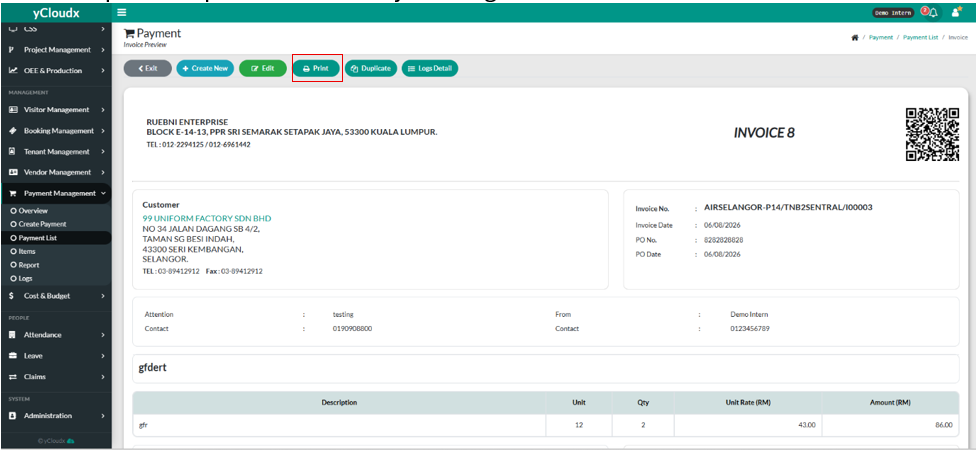
User can print the purchase order by clicking the “Print” button
User can duplicate the invoice by clicking “Duplicate” button.
User need to click “Save” button to save the duplicate
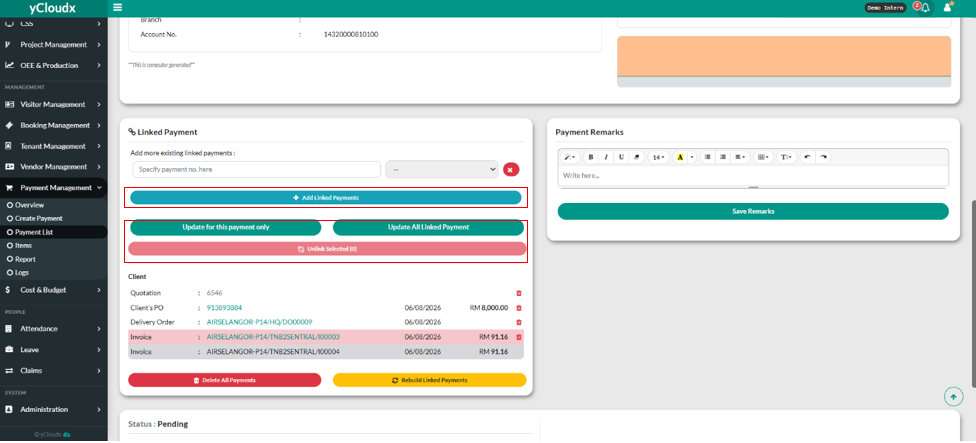
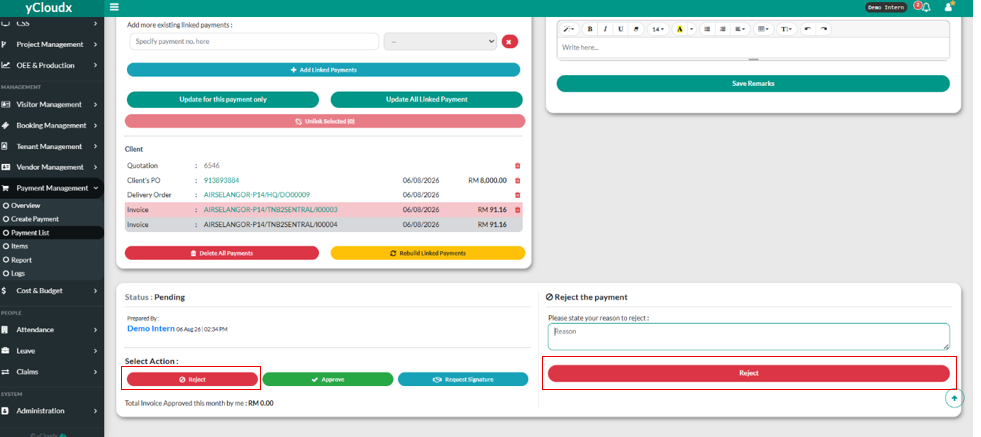
After that, user can add linked payment by clicking “+ Add Linked Payments” , fill in the specify payment number in the text box and also choose the document type.
Then, user can choose whether user want to update for this payment only, or user want to update all linked payment with clicking the button.
User also can unlink the selected payment by clicking the “Unlink Selected” button.
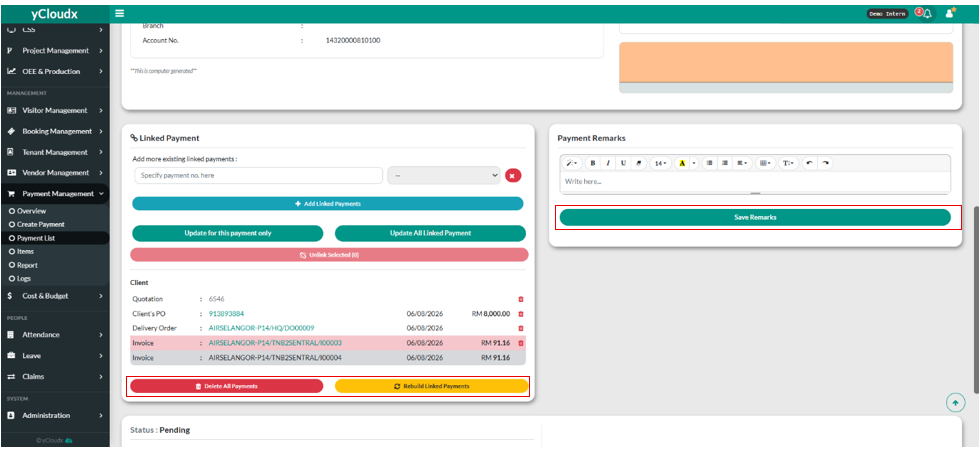
User also can choose to delete all payments by clicking “ Delete All Payments “ and also can rebuild linked payments by clicking “Rebuild Linked Payments”.
User can make payment remarks by fill in the text box, and click the “ Save Remarks “ button
User can choose to reject the invoice by clicking “ Reject” button.
If user rejects the purchase order, they need to state the reject reason in the textbox and click “Reject” button
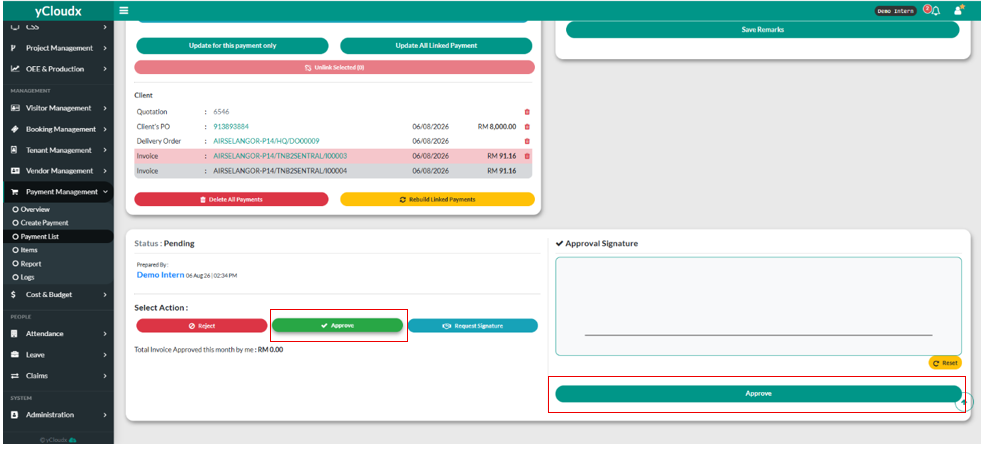
User can choose to approve the quotation by clicking “ Approve” button.
The system will ask user to make the approval signature.
After that, click the “Approve” button.
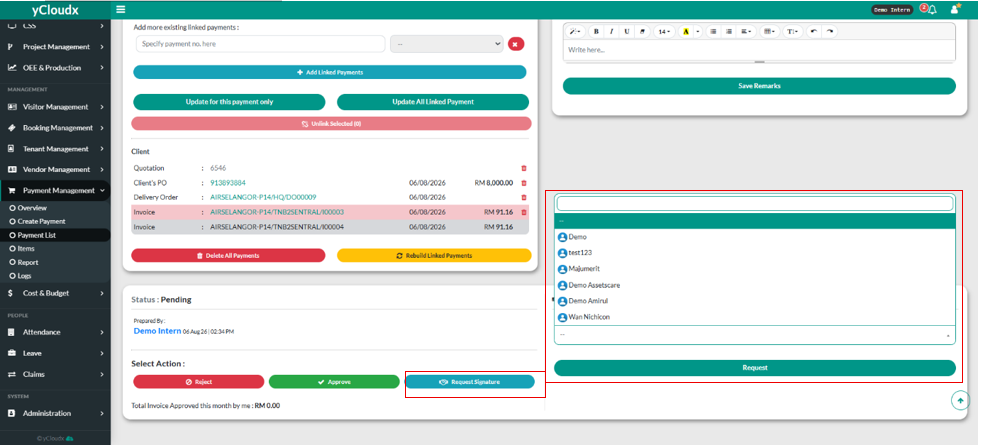
User can make a request for signature by clicking “ Request for Signature “ button.
User need to choose the person for request the signature and clicking “Request” button.