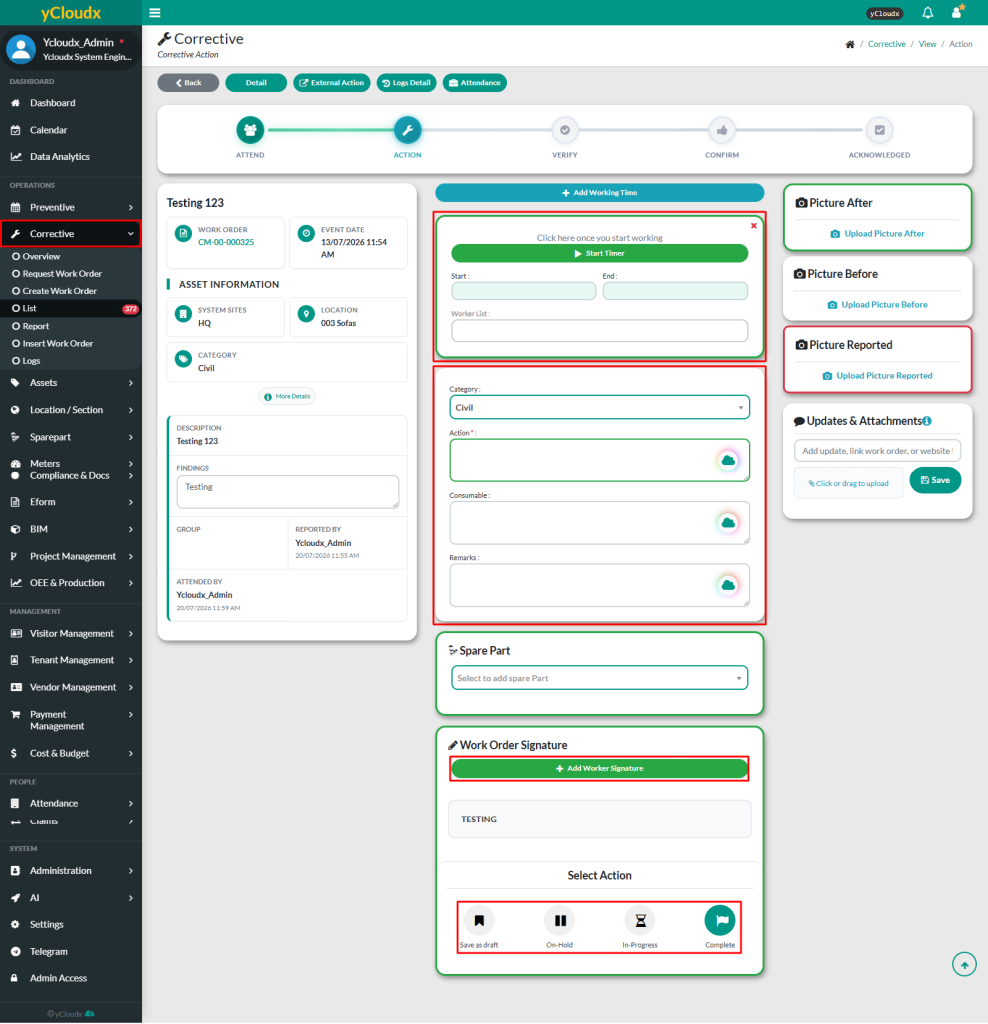
You can manually enter the start and end times in the provided box
Category : Select category of work
Configured in Setting > Corrective > Category
Action : Action taken to complete the work order. Use the Cloudy AI icon to paraphrase the text or use Voice Recognition to enter the details by voice
Consumable : List of consumables used to perform the work. Use the Cloudy AI icon to paraphrase the text or use Voice Recognition to enter the details by voice
Remarks : Additional notes regarding the work carried out. Use the Cloudy AI icon to paraphrase the text or use Voice Recognition to enter the details by voice
Worker List : Select workers or team involved in the work
Picture / Video / Attachment : Upload any media or attachment if needed. It is done to make it easier to make comparisons between the condition before and after the repair work
Picture After: Image of asset after repair
Picture Before : Image of asset before repair
Picture Reported : Image uploaded by the requester during the request or when creating a new CM work order
Spare Part : List of spare parts directly from the spare part list
Add Signature: Add the signature of the worker involved in the work
There are FOUR (4) types of actions that can be done:
Save as draft : Saves the entered details to continue later
On Hold : Changes the status to On Hold (e.g., waiting for parts)
In Progress : Changes the status to In Progress
Complete : Marks the work as complete and generates the report
Note:
The action status will change to In Progress once the Start button is clicked
If the work order is On Hold, the user should provide a reason in the Remarks section so others understand the delay