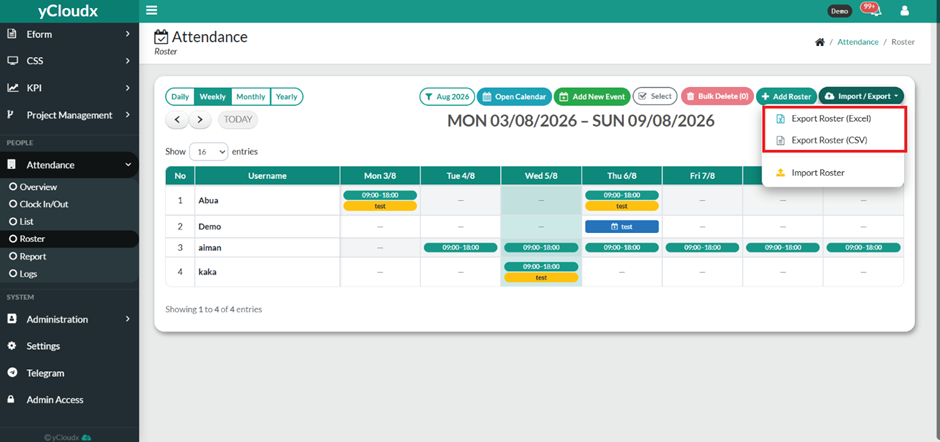
Click Import / Export and select Export to download the roster template.
Once exported, the file will be downloaded in Excel format. Users need to enter the roster details following the format in the exported file. Do not delete, rename, or modify any columns. Leave a cell blank if there is no roster assigned for that date.
Complete the mandatory fields, including Nickname, Name, Site, Department, Month, and Shift_Name.
Enter the employee’s working schedule in the respective date columns (e.g., 1/8, 2/8, 3/8) using the required time format (e.g., 09:00-18:00).
Save the completed Excel file.
Proceed to Attendance > Roster > Import / Export.
Select Import and upload the completed Excel file.
Wait for the import process to complete. The roster schedule will be updated and displayed in the system.