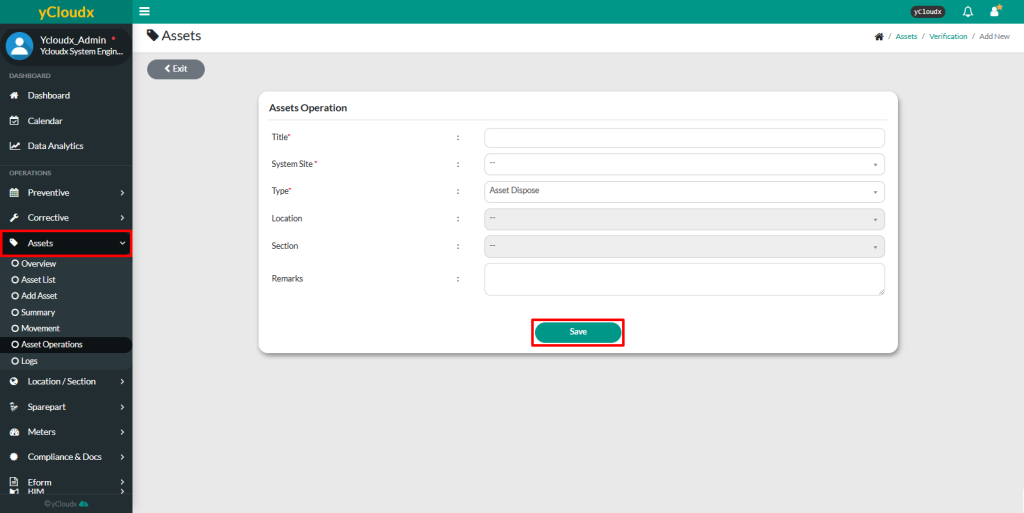
Fill in the details such as the Title, System Site, Type (Asset Asset Dispose), Location, Section and Remarks (if any)
After ensuring all data is entered correctly, then click Save button
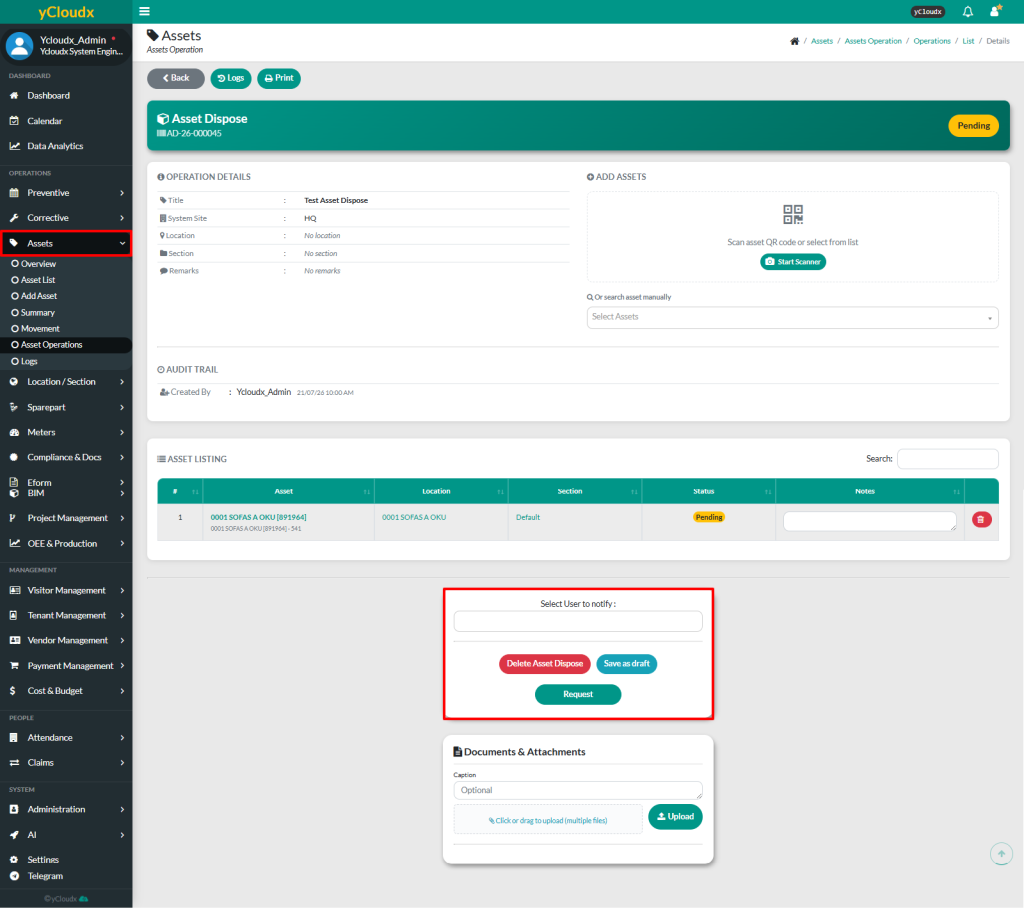
Once saved, the system will bring user to the second page
User can add assets by scanning the asset QR code using Start Scanner or select the asset manually from the asset list
User also can update the Status for each asset if required
User able to insert attachment for each asset operation
User may click Save as Draft to keep as draft or click Request button if all data is confirmed. To delete the process, user can click Delete Asset Dispose
Once completed, user can view the assets dispose in Assets > Asset Operations
A pop-up notification will appear to inform that the asset dispose request has been successfully submitted and the status will be updated from Pending to Verify