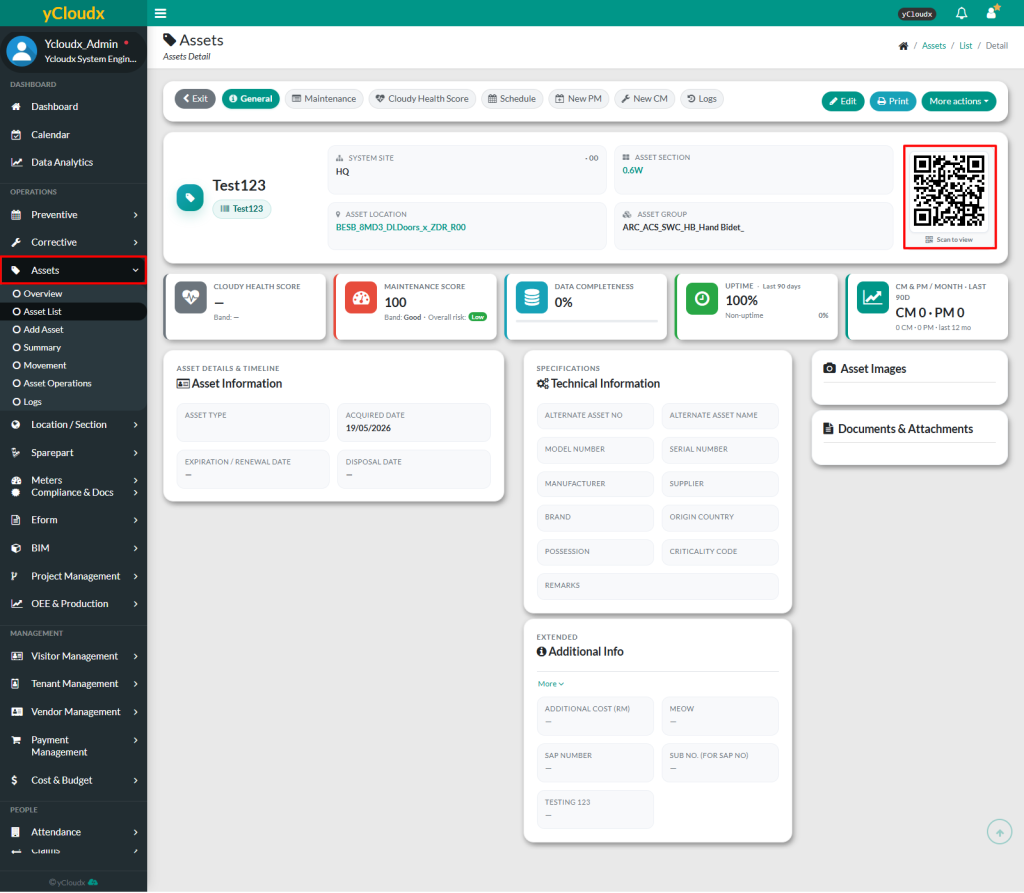
Each asset has its own unique QR code to differentiate between them. Once users scan the QR code, it will redirect them to the asset information page.
There are TWO (2) methods to generate a QR code for asset:
Generate QR codes for multiple assets
Generate a QR code for a specific asset
Method 1: Generate QR codes for multiple assets
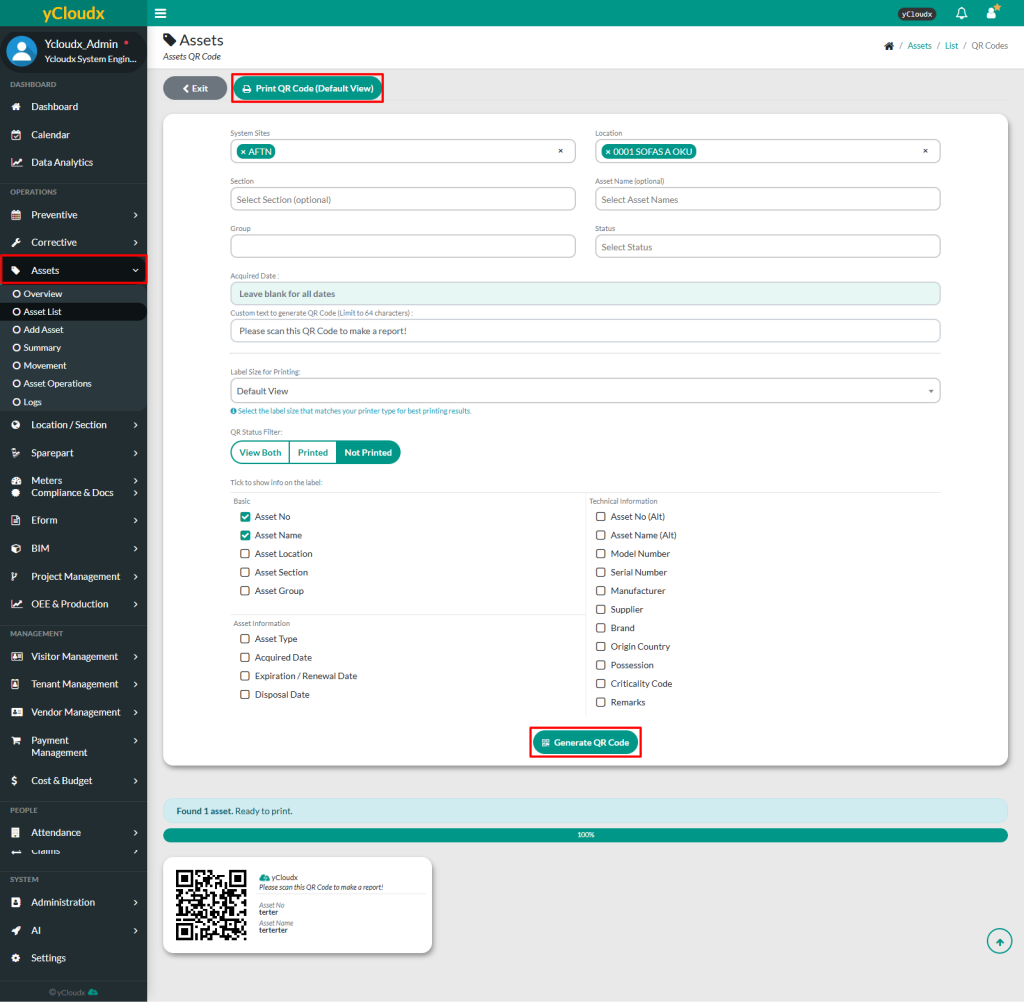
Proceed to Assets > Asset List
Click Generate QR Code
User can select system site, asset location, asset section, asset name, asset group and status to generate the QR code
User also can select the acquired date or leave the field blank to include assets from all dates
User able to add custom text to the QR Code, for example: “Please scan this QR code to make a report.”
User can select the label size for printing that matches the printer type to ensure the best printing results
User also can select the required QR Status Filter
View Both: Generate for both generated and not generated assets)
Printed: Display assets with QR codes that have been printed
Not Printed: Display assets with QR codes that have not been printed
User able to select additional information to display along with the QR code if required
Click Generate Qr Code button
When generating QR codes only for not generated assets, the Mark All as Generated button will appear. User can click this button to mark all not generated assets as generated
To print the QR code generated, user needs to click the Print Assets QR Code button