How to Request an External Booking for Users Without an Account?
Created On
byaini
Print
You are here:
< Back
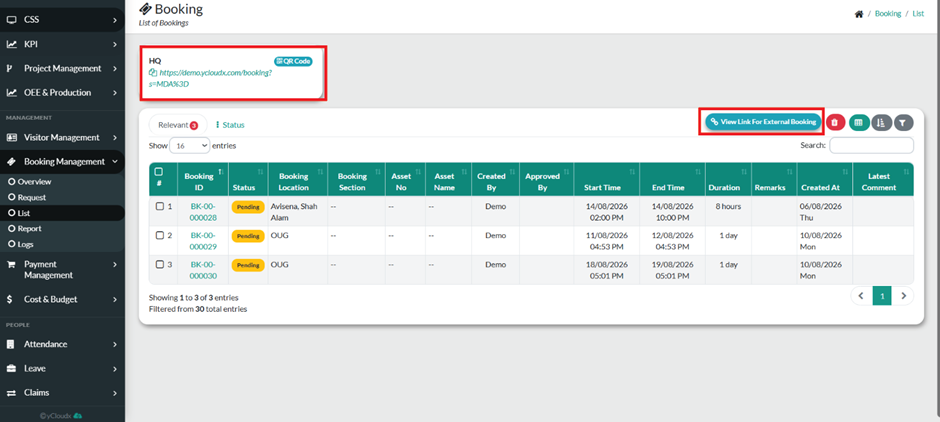
Go to Booking Management > List to access the booking list.
Click View Link For External Booking Or Share The Qr Code to access the external booking link.
Copy the generated External Booking URL and provide it to the external user who does not have an account.
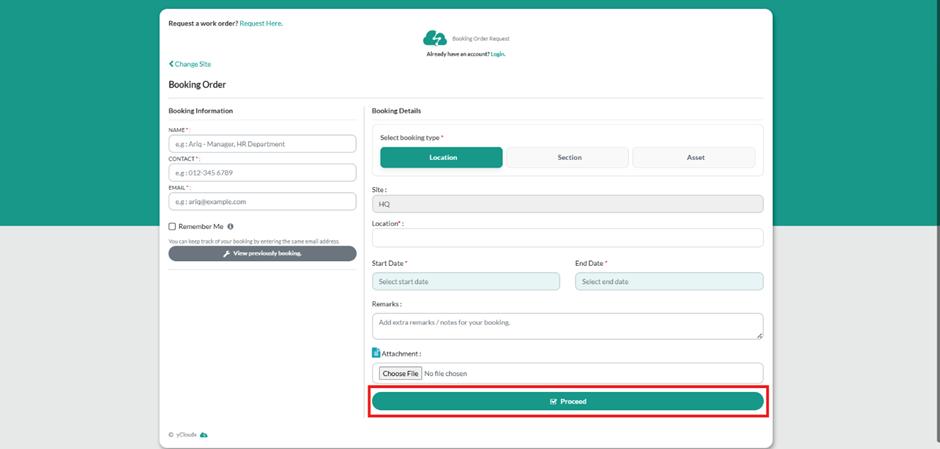
The external user opens the provided link to access the Booking Order page.
Under Booking Information, enter the requester’s Name, Contact Number, and Email Address.
Under Booking Details, select the required booking type: Location, Section, or Asset.
Select the required Location, Section, or Asset based on the selected booking type.
Select the required Start Date and End Date for the booking.
Enter any Remarks/Notes related to the booking request, if required.
Upload any required Attachment or supporting document.
Click Proceed to continue to the booking summary.
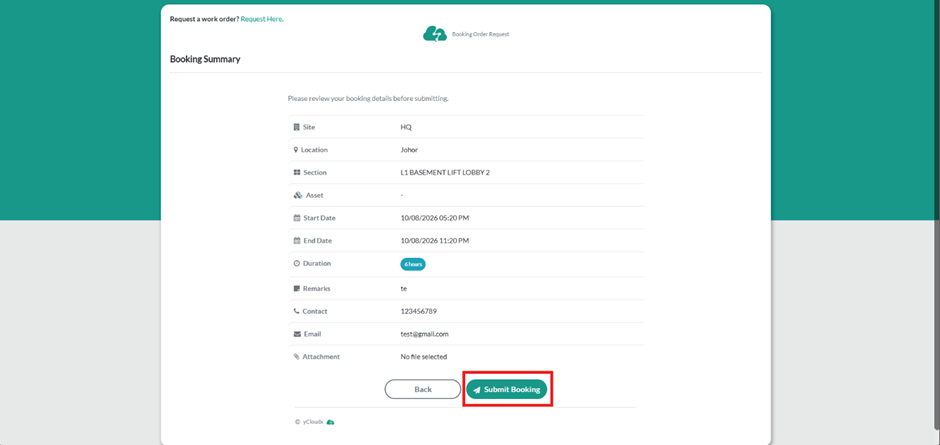
Review the Booking Summary, including the Site, Location, Section, Asset, Start Date, End Date, Duration, Remarks, Contact Number, Email, and Attachment.
Click Submit Booking to submit the external booking request.
The submitted booking will appear in the Booking Management > List with a Pending status until it is reviewed and approved by the authorized user.
The authorized user can open the booking record from the Booking List to review the booking details and take the appropriate action, such as Approve or Reject the request.
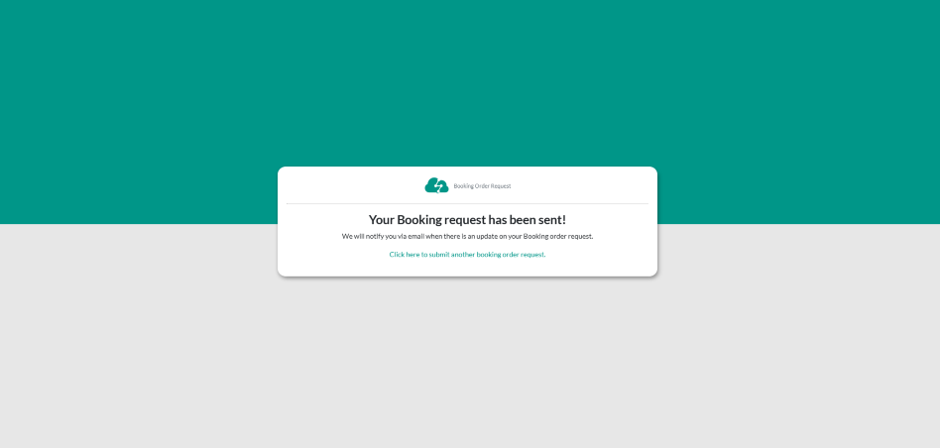
The notifications will be sent through email or contact number of user regarding their booking being approved or rejected.