How to set work order field for preventive maintenance?
Created On
byaini
Print
You are here:
< Back
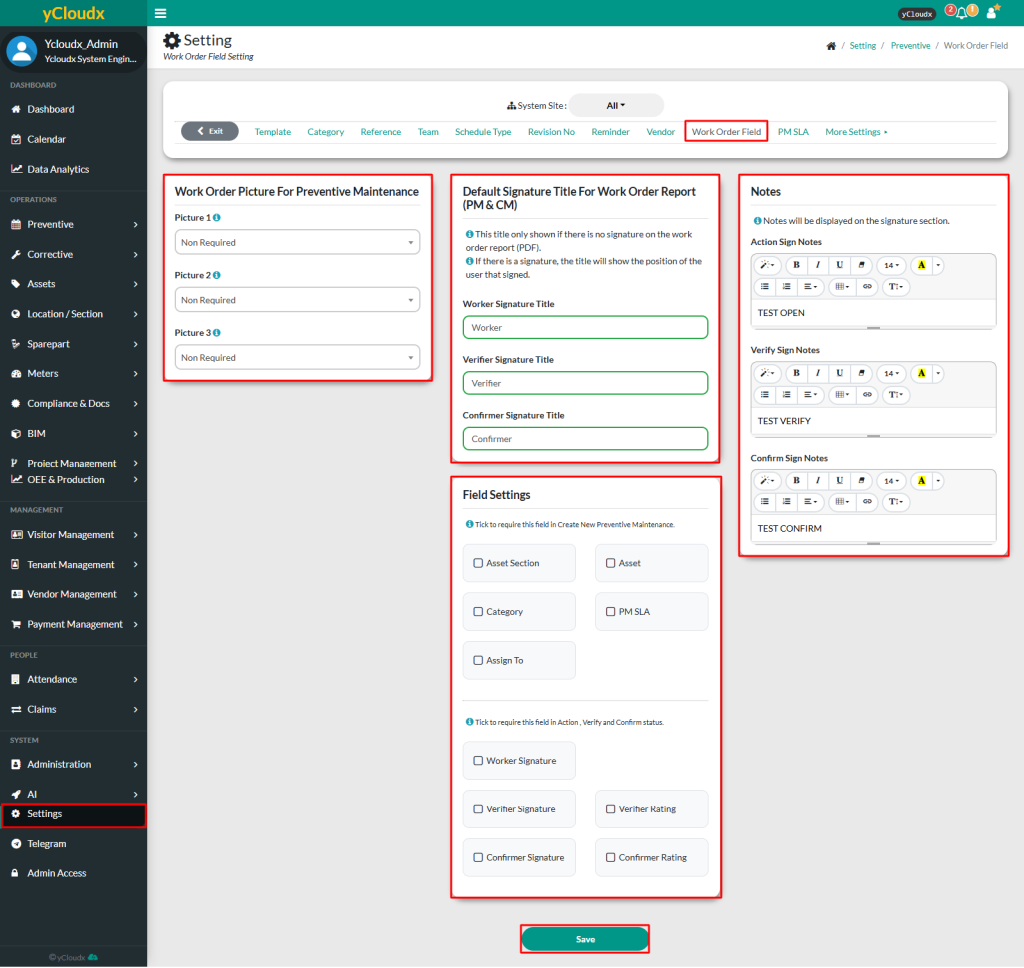
Proceed to Setting > Preventive > Work Order Field
There are three types of pictures that can be uploaded which is Picture 1, Picture 2 and Picture 3
Select the preferred work order picture option from the following for each picture
Non Required – User can submit a work order without uploading a picture
Non Required + Mobile Camera Only – User can submit a work order without a picture but if a picture is added, it must be taken live using the camera (gallery access is not allowed)
Required – User must upload a picture to submit the work order, either by taking a live photo using the camera or selecting one from the gallery
Required + Mobile Camera Only – User must upload a live photo using the camera to submit the work order (gallery access is not allowed)
User can define the default signature titles for the work order reports by entering the preferred titles for:
Worker Signature Title
Verifier Signature Title
Confirmer Signature Title
User can configure the notes displayed in the signature section forL
Action Sign Notes
Verify Sign Notes
Confirm Sign Notes
User able to enable additional required fields by selecting the checkboxes for specific items that must be included in the work order such as:
Asset Section
Asset
Category
PM SLA
Assign to
User can also define the required fields for Action, Verify and Confirm status by selecting the relevant checkboxes for:
Worker Signature
Verifier Signature
Verifier Rating
Confirmer Signature
Confirmer Rating
Click Save to update the work order field settings