How Can We Help?
How to add, update or delete work order sub status?
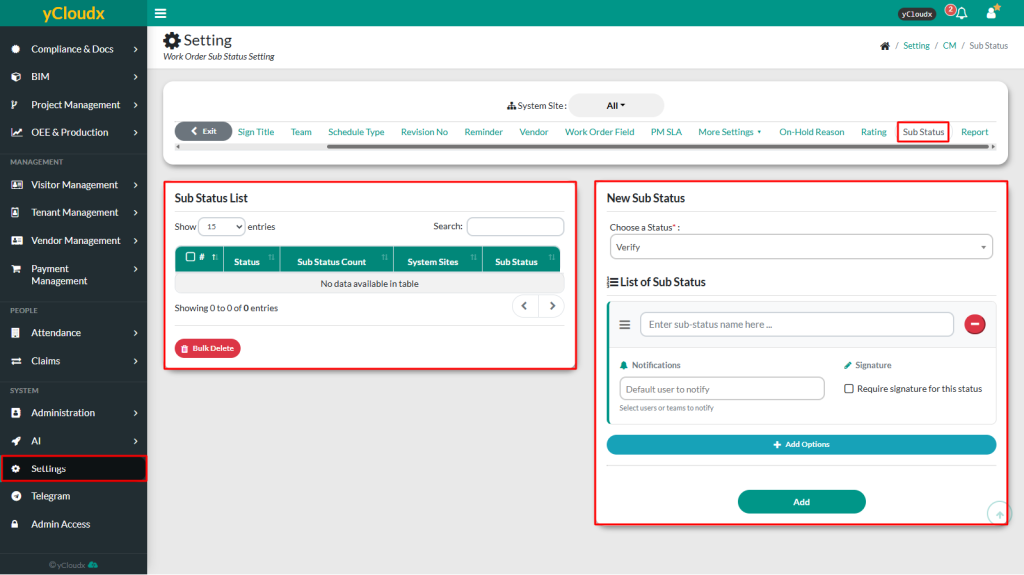
To add a work order sub status
- Proceed to Setting > Preventive > Sub Status
- Select the preferred Status from the Choose a Status dropdown
- Enter the Sub Status Name and select the users or teams to notify under Notifications
- User able enable Require signature for this status if required
- The configured sub status will be added to the List of Sub Status
- To add another sub status under the same status, click Add Options and repeat Steps 2–5.
- Click Add to save all configured sub statuses
To update or delete a work order sub status
- Proceed to Setting > Preventive > Sub Status
- Select sub status from the Sub Status List
- Modify the required details if needed such as Status, Sub Status Name, Notifications and Signature
- To add another sub status under the selected status, click Add Options and enter the required details
- To remove a specific sub status, click Remove (-) button beside the sub status
- Click Update to save the changes, or click Delete to remove the selected status
- To delete multiple sub statuses at once, select the required entries from the Sub Status List and click Bulk Delete