Your building model.
Connected to the work.
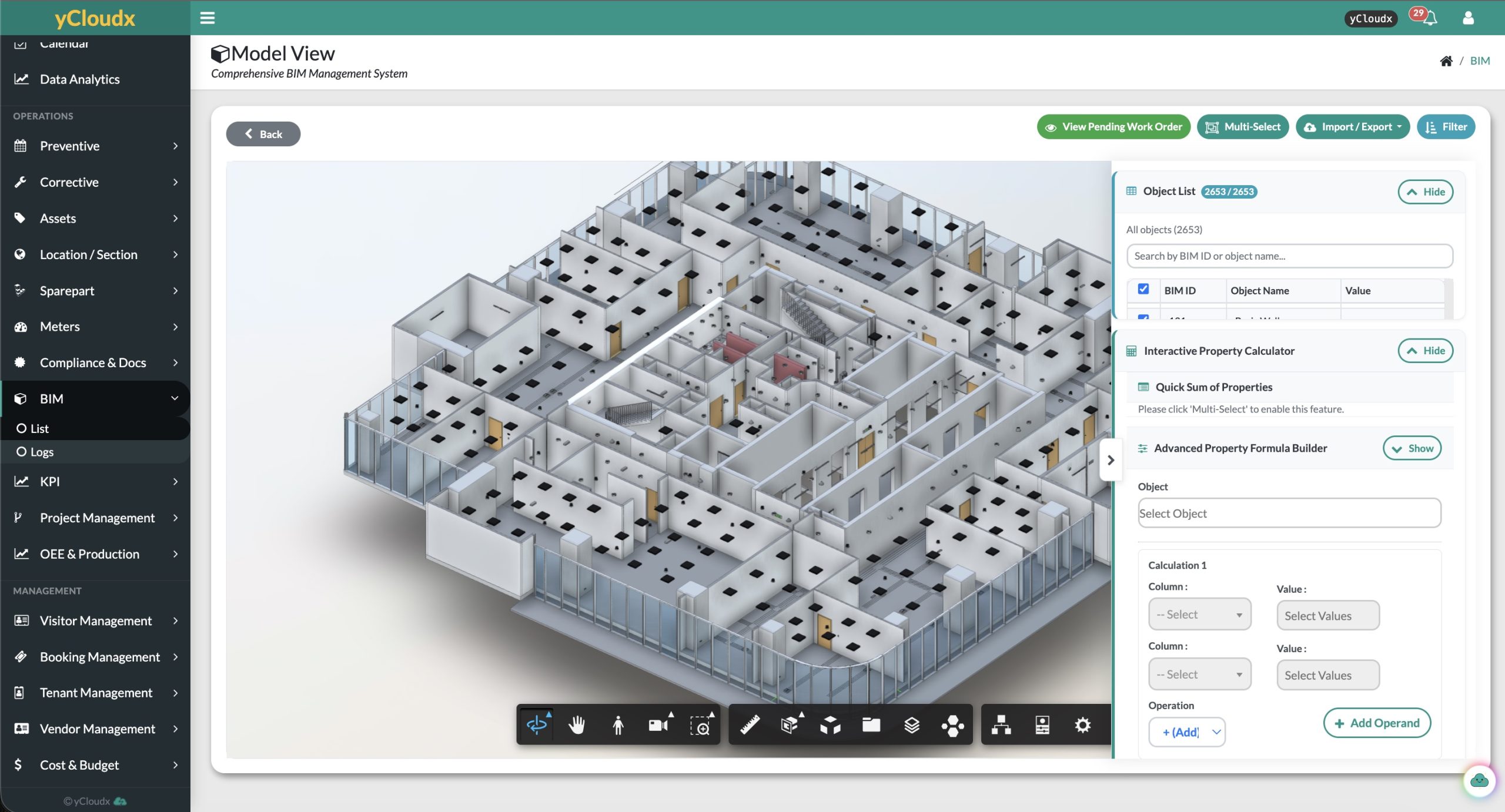
Bring Building Information Modelling into everyday operations. Explore your model, link objects to yCloudx assets and access the maintenance information behind every space and piece of equipment.
A model your operations
team can put to work.
BIM is more useful when the building geometry connects to real operational records. yCloudx turns supported models into a visual way to navigate your facility, identify assets and find the information needed for maintenance.
Explore in 3D
Zoom, pan, rotate and walk through the model. Search, filter, group and isolate objects to focus on the area or equipment you need.
Inspect object information
Select an object to review the identity, location, product and dimension parameters available in the uploaded model.
Link to operational records
Map BIM objects to yCloudx locations, sections and assets—individually, with multi-select or through bulk-mapping workflows.
See maintenance in context
Visualise assets and rooms with open work orders, then use linked records to review preventive and corrective maintenance history.
Measure and calculate
Use section cuts, cross-sections and measurement tools. Multi-select objects to review quantities and available numerical properties.
Prepare data for handover
Export object data to CSV or Excel for checking, reconciliation and asset-register preparation. Use Excel to assist with bulk linking.
From model object
to operational record.
Map BIM geometry to your existing facility structure. An object becomes a visual entry point to the locations, sections and assets your team already manages in yCloudx.
- Individual, multi-select and bulk mapping
- Map and unmap objects as requirements change
- Review mapped and unmapped objects
- Register only the objects you need to maintain
Illustrative mapping structure · Linked records depend on your configuration.
The model is the starting point.
The record tells the story.
Once linked, BIM objects can lead users to the associated yCloudx record. Bring building information and maintenance context together instead of treating them as separate sources.
Asset information
Specifications, lifecycle details, spare parts and vendor records.
Maintenance history
Work orders, preventive maintenance and corrective maintenance records.
Compliance & inspections
Inspection history, compliance information and warranties.
Documents & costs
Attachments, meter readings and available cost information.
Find the details.
Understand the quantities.
Select an object to inspect its available properties. Multi-select related objects to review counts or calculate numerical parameters—such as the combined length of pipes or the area of selected spaces.
| Information type | Examples available in a model |
|---|---|
| Identity | Object ID, name, category, family and type |
| Location | Level, room or space, and system |
| Product | Manufacturer, model and material |
| Dimensions | Length, width, height, diameter and area |
Displayed properties and calculations depend on the data and units in the original model. Validate model information before using it for operational decisions or quantities.
View familiar formats.
Keep routine access simple.
Explore supported BIM and CAD models directly in yCloudx without requiring routine users to work in BIM authoring software.
Confirm specific file formats, versions and preparation requirements with our team. Model authoring and design changes remain in the appropriate authoring tools.
A practical path
from model to maintenance.
Prepare, validate and link the information your team needs. Keep your asset register focused on maintainable equipment, rather than registering every geometric object as an asset.
Review the model
Check the supported file format, object structure and available parameters.
Export & validate
Export object data to CSV or Excel for handover checks and asset-register reconciliation.
Map the records
Prepare the mapping file and use Excel import to assist bulk linking to existing yCloudx records.
Use it in operations
Navigate visually, review asset history and identify assets or rooms with open work orders.
BIM integration shaped
around your facility.
Planning BIM-to-facility-management integration in Malaysia or an international deployment? Start with your facility structure, asset register and the maintenance workflows you want to improve.
yCloudx brings the model and operational records into one platform, extending the value of building information beyond project handover.
BIM integration FAQs.
What is BIM integration with CMMS?
BIM integration connects building-model objects with operational records in a Computerized Maintenance Management System. In yCloudx, linked objects provide a visual route to locations, sections, assets and their maintenance information.
Which BIM and CAD formats can I use?
yCloudx supports model-viewing workflows for Revit, Navisworks, IFC and AutoCAD, alongside other supported formats. Share your file format, version and a representative model so compatibility and preparation requirements can be confirmed for your project.
Do routine users need BIM authoring software?
No. Routine viewing and exploration of supported models can take place within yCloudx. Model creation and design changes remain separate activities carried out in the appropriate authoring tools.
Can BIM objects link to existing assets and work orders?
Yes. Objects can be mapped to existing yCloudx locations, sections and assets. Once linked, users can access the associated operational records, including maintenance history. Assets and rooms with open work orders can also be visualised in BIM.
What object information is available?
Available information depends on the uploaded model. It may include object IDs, names, categories, levels, rooms, manufacturer details, materials and dimensions. Missing model properties are not automatically created by the viewer.
Can we map objects in bulk?
Yes. Individual, multi-select and bulk mapping are supported. Excel import can assist with linking BIM objects to existing yCloudx records. Teams can review mapped and unmapped objects and exclude objects that should not become maintainable assets.
Can we calculate quantities or export model data?
Users can multi-select objects to review or calculate available numerical parameters, such as combined pipe length, area or equipment counts. BIM object data can be exported to CSV or Excel for validation, asset-register preparation and handover review.
Does BIM work on mobile devices?
BIM information is accessible through a browser and supported mobile devices, including tablets. Usability and performance depend on the model complexity, device and connectivity; these should be checked using your actual models.
Can you support BIM-to-facility-management projects in Malaysia?
Discuss your Malaysian facility or international project with the yCloudx team. Start with your model files, facility structure, existing asset register and maintenance requirements so the integration scope and support arrangements can be defined.
See your building.
Know what needs attention.
Explore how your BIM model can connect with assets, locations and maintenance records in yCloudx.