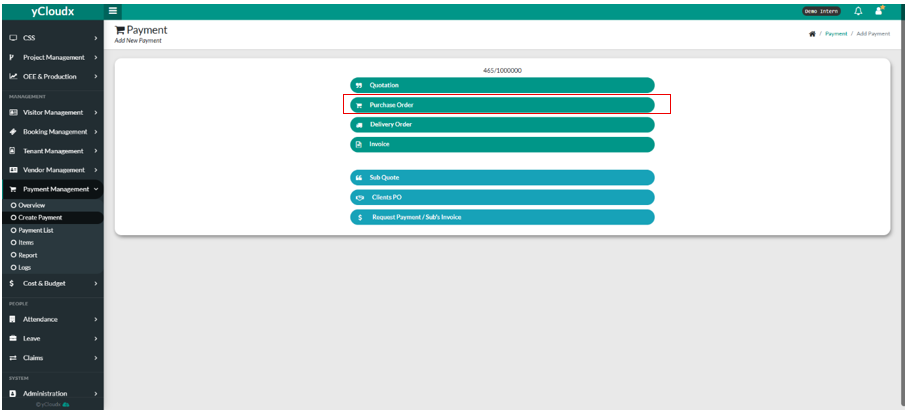
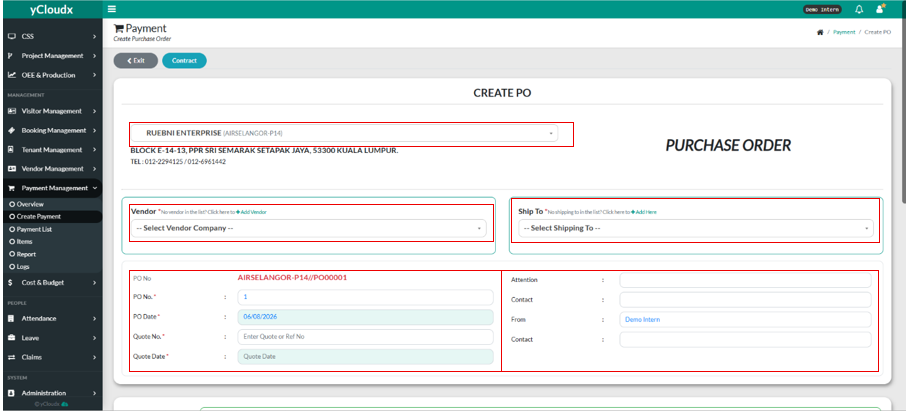
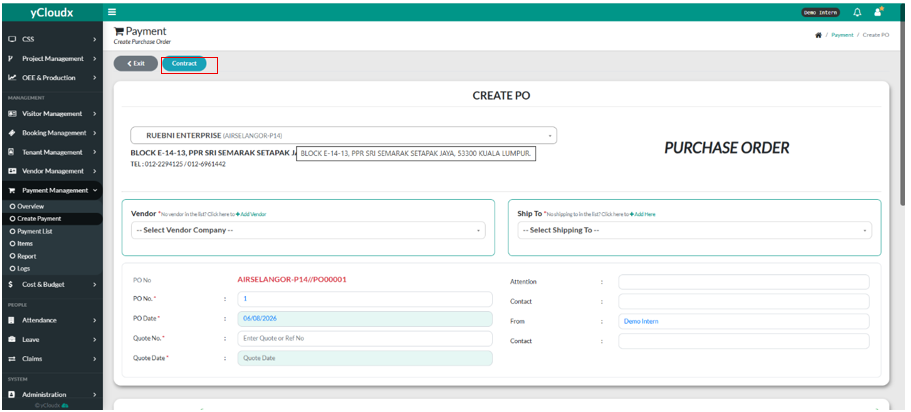
User need to fill in the company name in the text box
User need to select the vendor in the” — Select Vendor Company –” and also select where the shipping went to in the “– Select Shipping To — “.
User need to fill in the PO Number, PO Date, Quote Number, Quote Date, by fill in all of the textbox.
User need to fill in the Attention, Attention Contact, From Who, and also the contact for the from user.
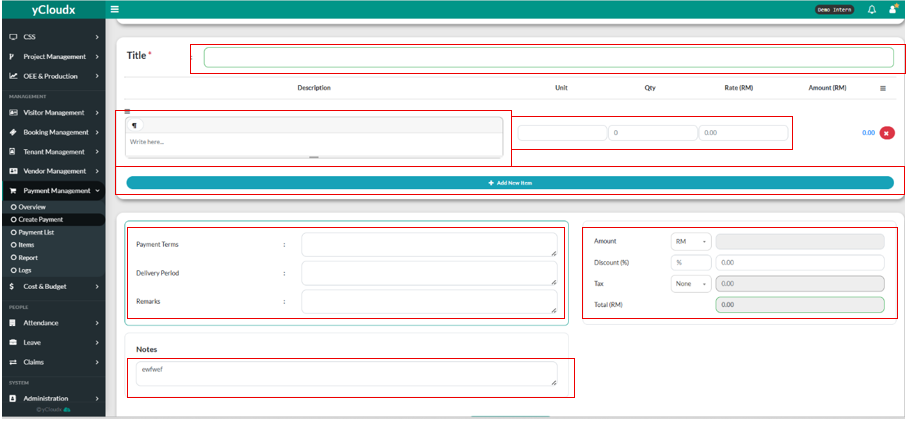
User need to fill in the title by fill in the text box.
User need to fill in the description in the text box.
User need to fill in the Unit, Qty ( Quantity ) Rate (RM), and the Amount (RM) will automatically calculated.
User also can add new item by clicking “+ Add new Item” button.
User need to fill in the Payment Terms, Delivery Period, Remarks in their textbox.
User need to put in the discount (if user want to) , and for tax, user need to click between the selection, and the Total (RM) will be calculated automatically.
User also can insert “Notes” in the notes textbox
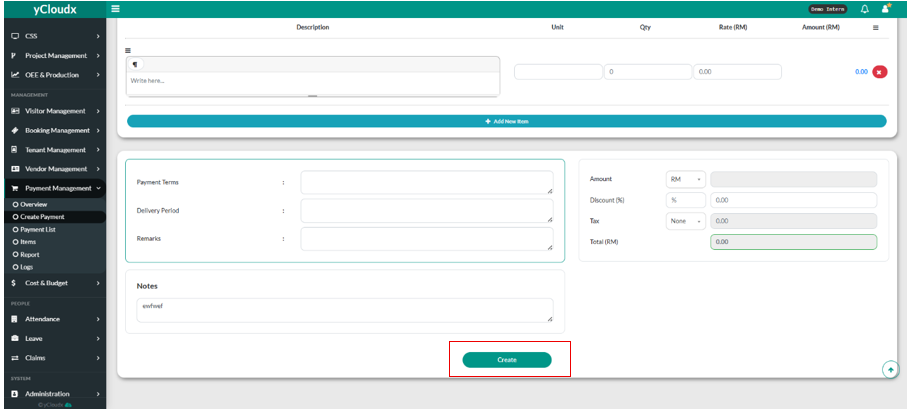
User need to click “ Create” button to create purchase order
User can make the contract payment by clicking “ Contract”
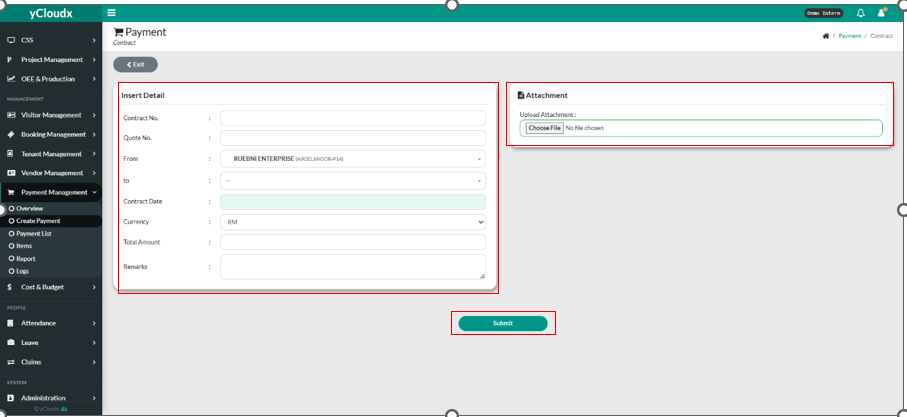
User need to fill in all of the details in the contract such as Contract No, Quote No, From, To, Contract Date, Currency, Total Amount, Remarks.
User also need to upload the attachment by choosing file