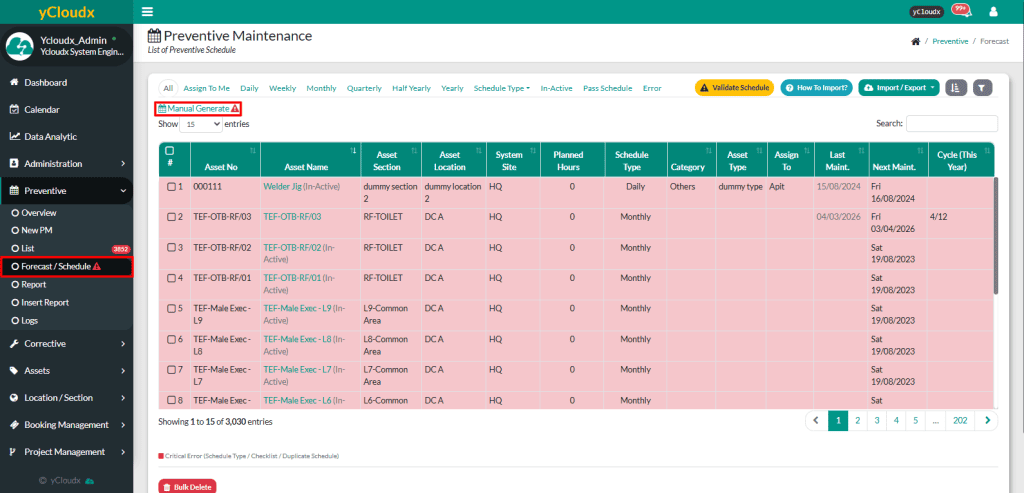
If there is a red exclamation mark next to the Forecast / Schedule and Manual Generate button, it means there are work orders that have not been generated yet
Proceed to Preventive > Forecast / Schedule
Click Manual Generate button
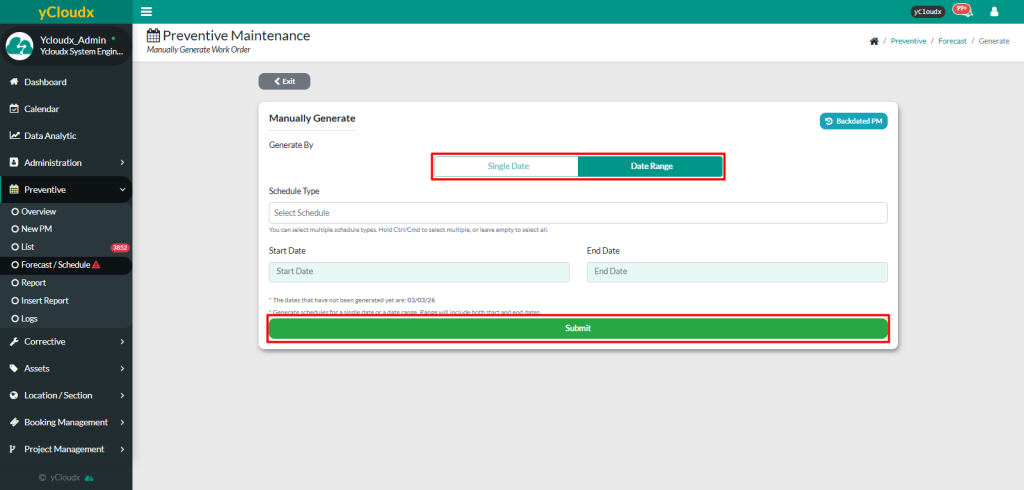
The system will display the dates on which work orders have not been generated
Select the date of the passed schedule.User able to select either Single Day or Date Range to manually generate the work orders
Click Submit to generate all PM schedules based on the selected date
Note: Once all incomplete dates have been manually generated, the red exclamation mark will disappear