How Can We Help?
How to add new PM?
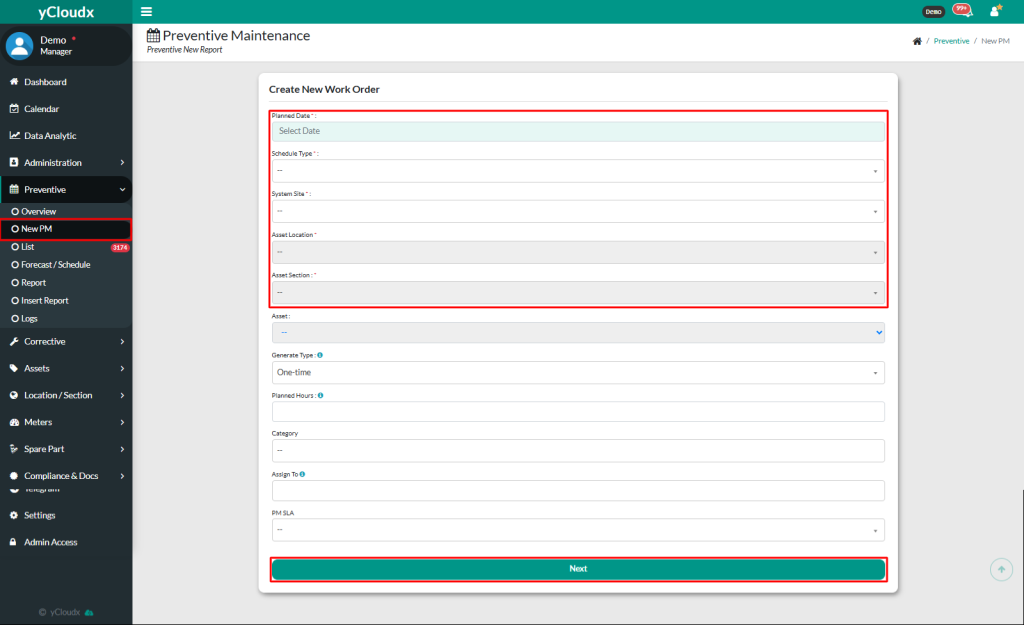
- Proceed to Preventive > New PM
- Fill in the form to create new work order
- The required fields are Planned Date, Schedule Type, System Site, Asset Location, Asset Section, Asset and PM SLA. While other fields are optional, but it is recommended to fill in all details including Generate Type (One time or Generated), Planned Hours, Category and Assign To
- One time – Generate the work order once
- Generated – Automatically generates each day, week, month or year
- For plan date, user can select a date or just simply tick the current time box to use the present date and time
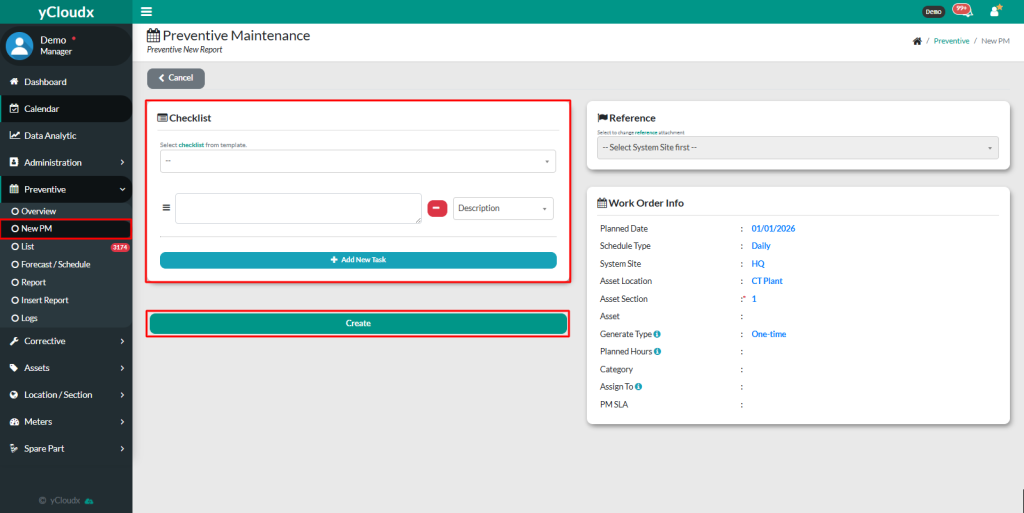
- Click Next to proceed to the checklist selection page
- Select checklists from the provided template or manually insert tasks to be used
- Click Create to create new work and the work order will automatically be added to the Preventive > List
- A popup notification will appear to confirm that the new PM has been successfully created.