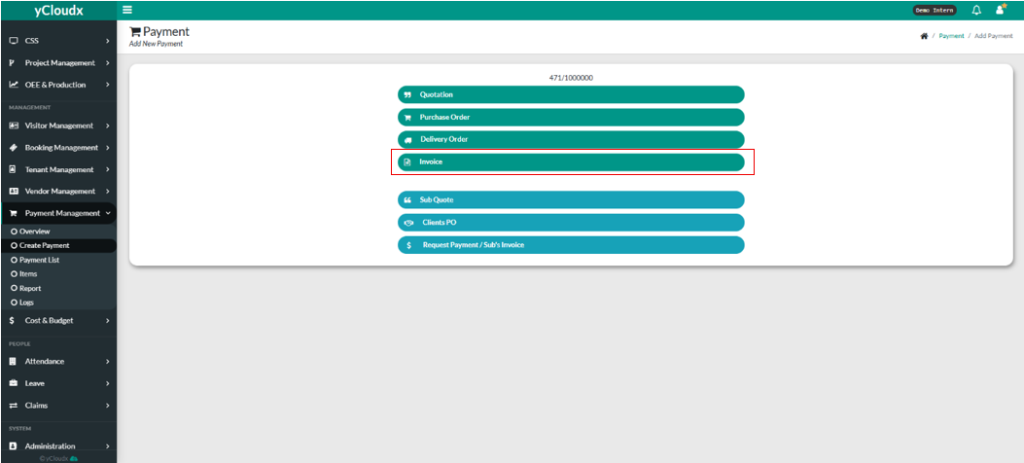
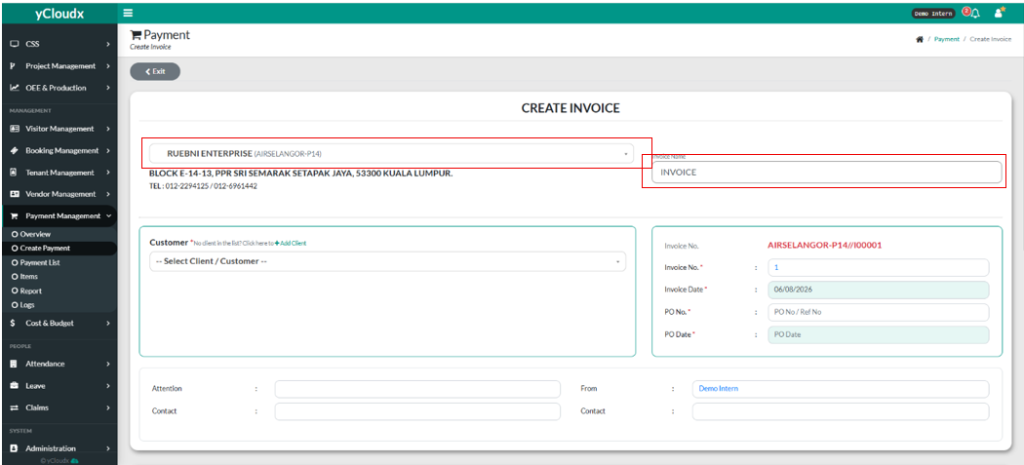
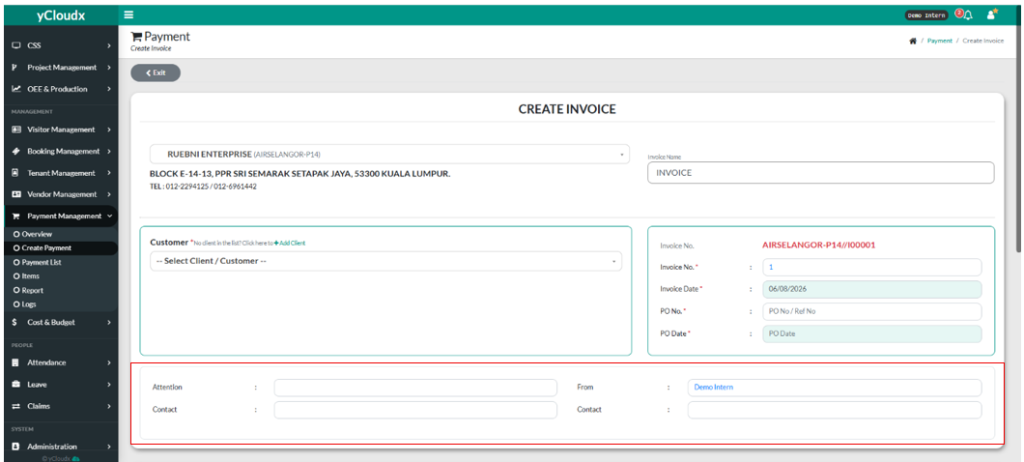
User need to fill in company name in the text box.
User need to fill in “Invoice Name’ in the text box
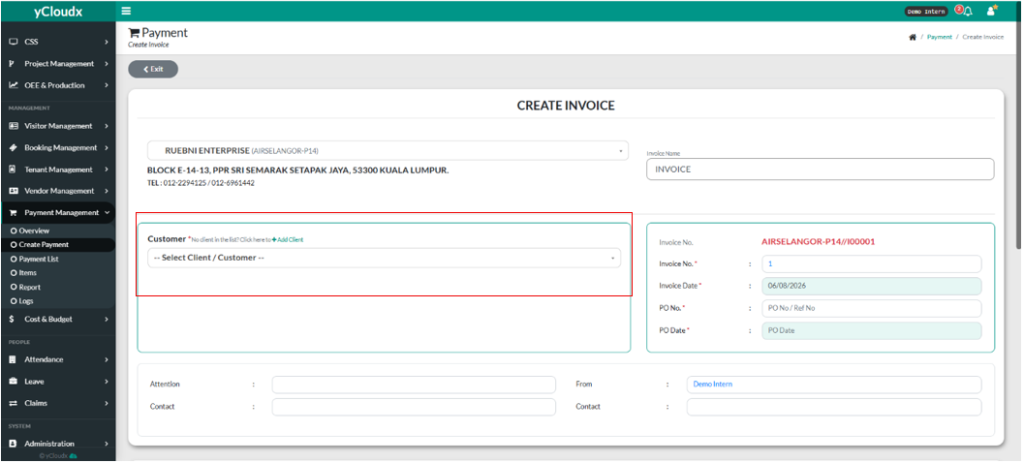
User need to select customer by clicking “ –Select Client/Customer–“ and there are a drop down list of customers
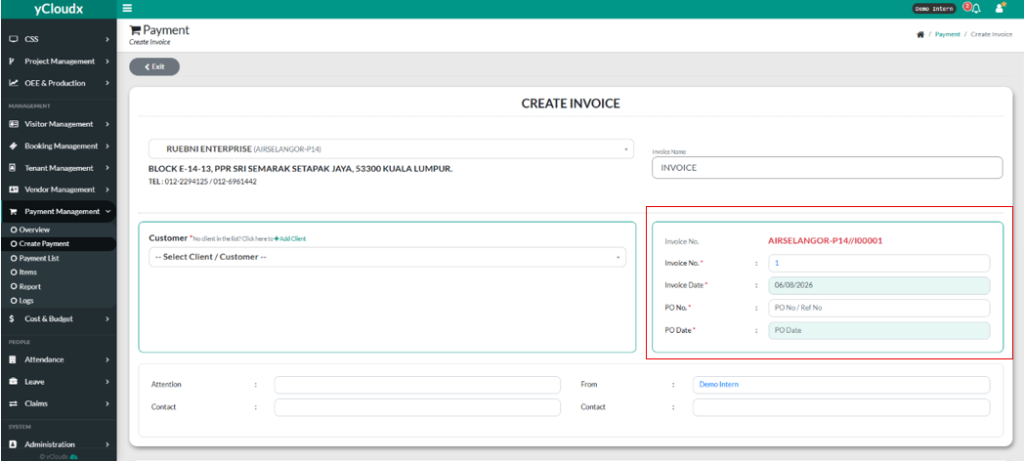
User need to fill in the Invoice No, Invoice Date, PO No, PO Date by fill in the text box.
User need to fill in the Attention, Attention Contact, From Who, and also the contact for the from user
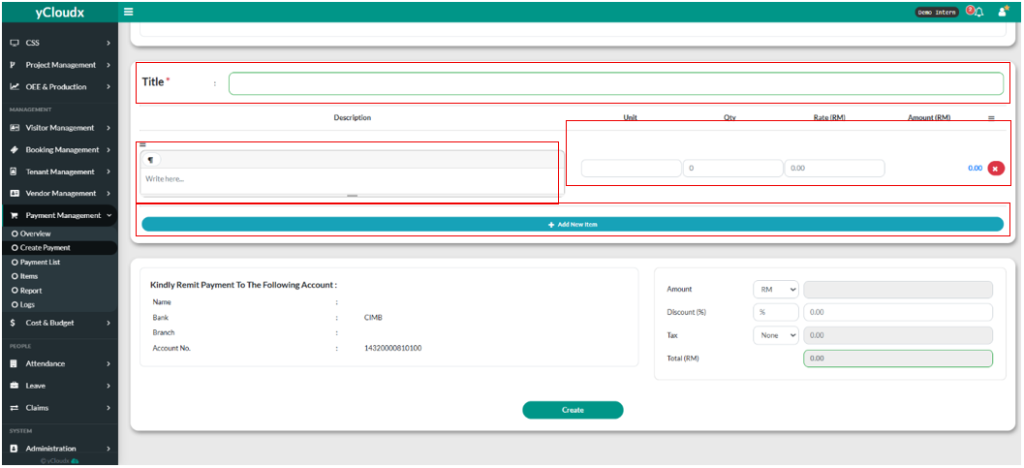
User need to fill in the title in the ”Title” text box.
User need to fill in description in the “Description” text box.
User need to fill in the Unit, Qty ( Quantity ) Rate (RM), and the Amount (RM) will automatically calculated.
User also can add new item by clicking “+ Add new Item” button.
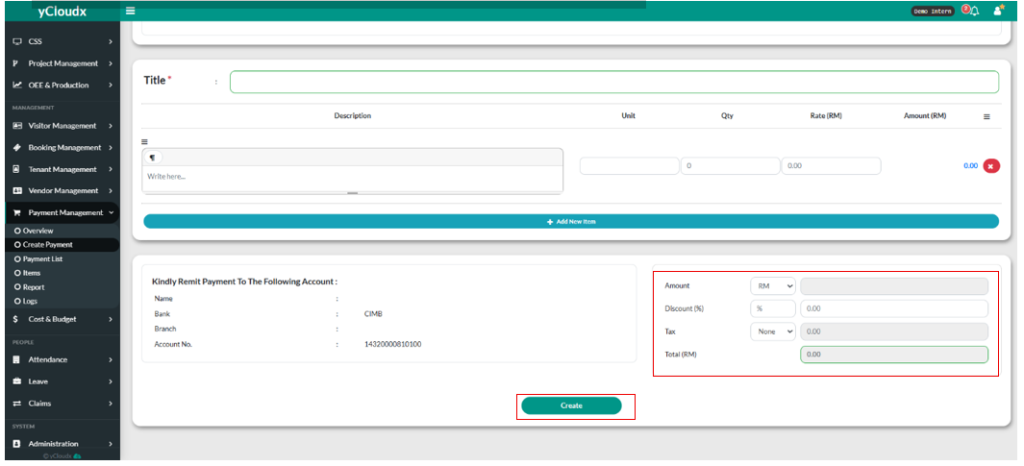
User need to put in the discount (if user want to) , and for tax, user need to click between the selection, and the Total (RM) will be calculated automatically.
User need to click “Create” button to create Invoice.