How Can We Help?
How to add, update or delete template?
There are two methods to add, update or delete checklist template
- Using template in setting
- Using excel
Method 1: Using template in setting
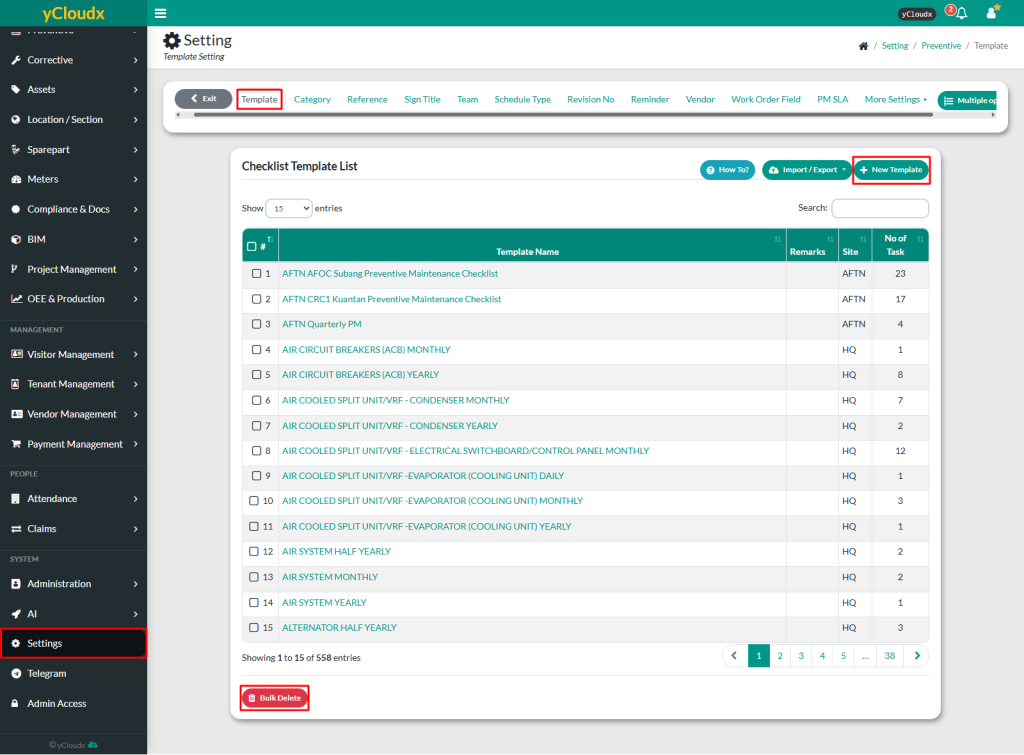
To add new template
- Proceed to Setting > Preventive > Template
- Insert new checklist template details and provide remarks if needed
- Click Add, and the new checklist template will be added to the list
To update or delete template
Method 2: Using excel
User able to update checklist template by Import / Export Checklist Template in Excel format
- Proceed to Setting > Preventive > Template
- Click Import / Export button
- Once exported, the file will be in Excel format
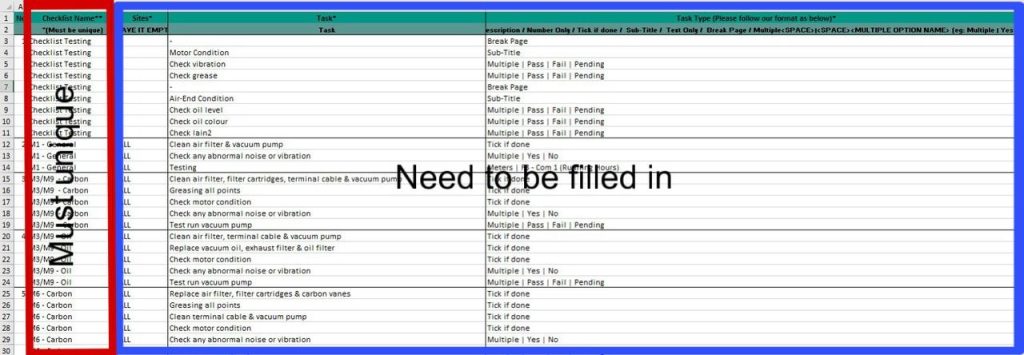
- User need to insert the checklist template details following the format in the exported file
- Do not delete or remove any columns. Leave it blank if there is not information for the column
- Text fields marked with (**) must be unique for each checklist and must be filled in such as Checklist Name
- Text fields marked with (*) are mandatory, such as Sites, Tasks and Task Type. Other fields are optional but it is recommended to fill in all details
- Each task must be placed in a separate row which means if a checklist has ten different tasks, they must be entered in ten separate rows but with the same Checklist Name and Site
- User need to insert the correct Task Type from the following option
- Break Page – Task appears in a separate box but on the same page
- Sub-Title – A subheading for categorizing tasks
- Description – Allows text, numbers and symbols
- Number Only – Requires numeric input
- Tick If Done – A checkbox for marking task completion
- Text Only – Displays text without requiring input
- Multiple Option – A dropdown menu for selecting option
- Save the document and import the checklist template into the system
- Proceed to Setting > Preventive > Template > Import / Export > Update Checklist @ Update All Checklist including Upcoming Schedule
- Update Checklist – Only updates the checklist
- Update All Checklist including Upcoming Schedule – Update checklist including upcoming schedules that have not yet been generated

Note: Any checklist that has already been generated will not be affected or changed, even if the checklist has been updated