Skip to main content
How Can We Help?
How to Add New Part in Spare Part?
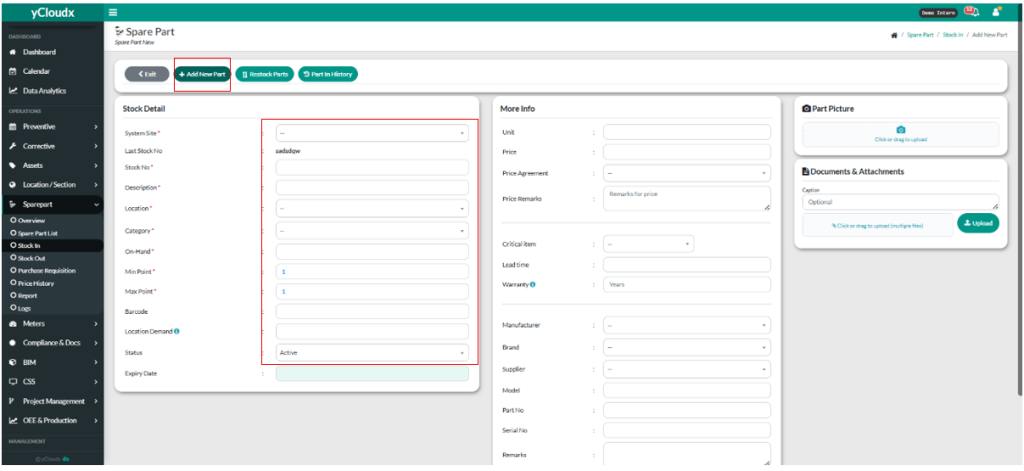
- Proceed Sparepart > Stock In.
- User need to click “+Add New Part”.
- It will lead user to another page.
- User must fill in System Site, Stock No, Description, Location, Category, On Hand, Min Point, Location Demand on Stock Detail.
- For better experience, user need to fill in all information in the Stock Detail.
- Then user need to insert all the details to have better experience.
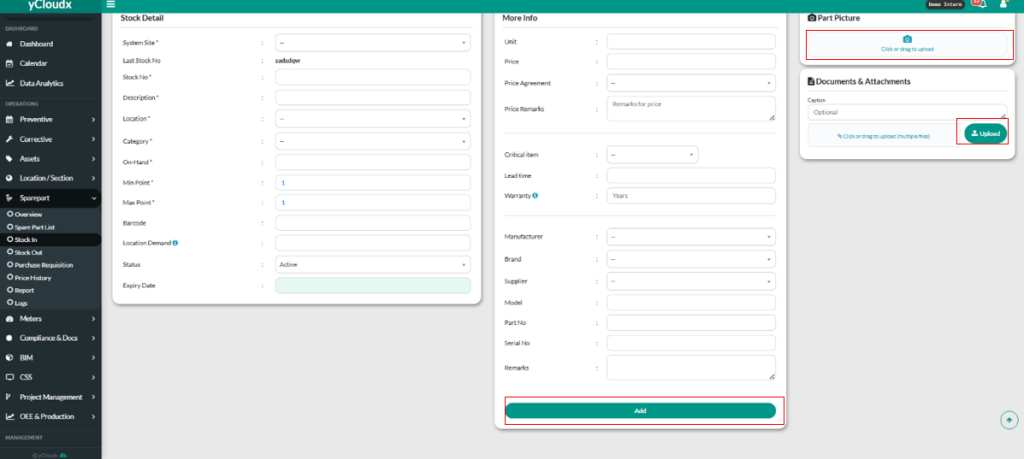
- User to click “Add” button to confirm the stock in.
- User also can send the part of the picture by click “Click drag to upload”.
- User can send documents and attachments by click “Click drag to upload( multiple files ).
- User to click “ Upload “ to confirm the documents and attachments.