How Can We Help?
How to apply for asset proposal?
- Proceed to the Assets > Asset Operations
- Click + Asset Operations button
- Fill in the details such as the Title, System Site, Type (Asset Proposal) and Remarks (if any)
- After ensuring all data is entered correctly, then click Save button

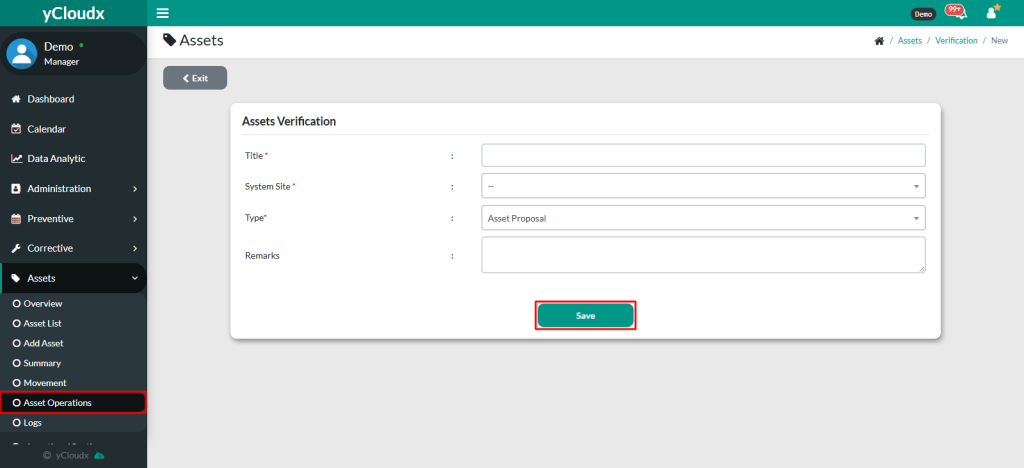
- Once saved, the system will bring user to the second page
- On the second page, user are required to fill in all asset details in the provided field to complete the proposal process
- The text fields marked with (**) must be unique for each asset and must be filled in such as Asset No and Asset Name
- The text fields marked with (*) are mandatory, such as Asset Section, Asset Location, System Site and Asset Group. Others are optional but it is best to fill in all
- Click Next to proceed to the next page to review the asset information filled on the second page, add attachment and picture (if any)
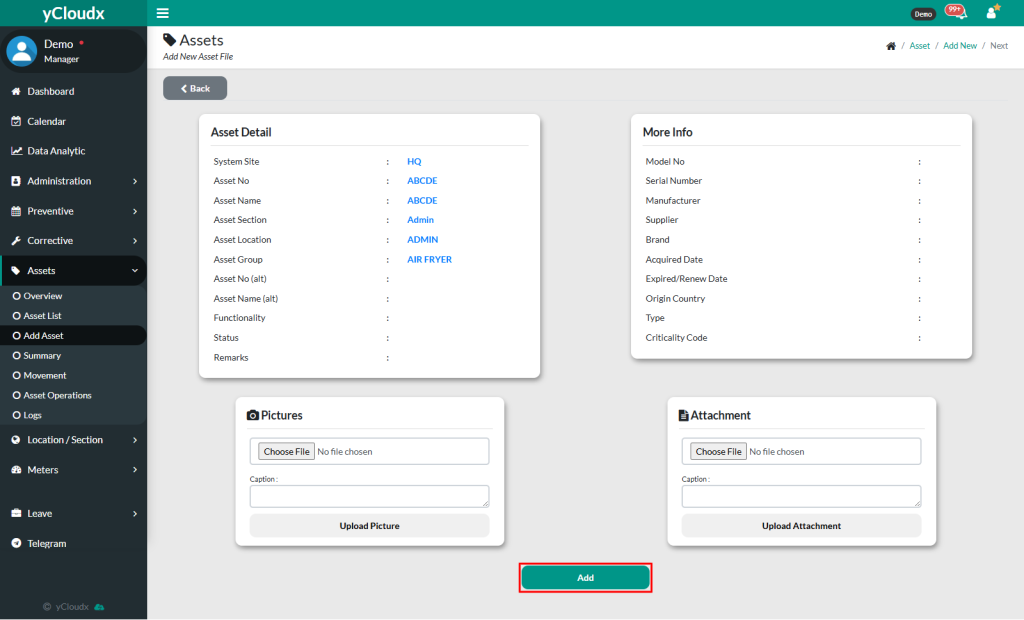
- Click Add button to submit the new asset proposal after all the information needed has been filled in
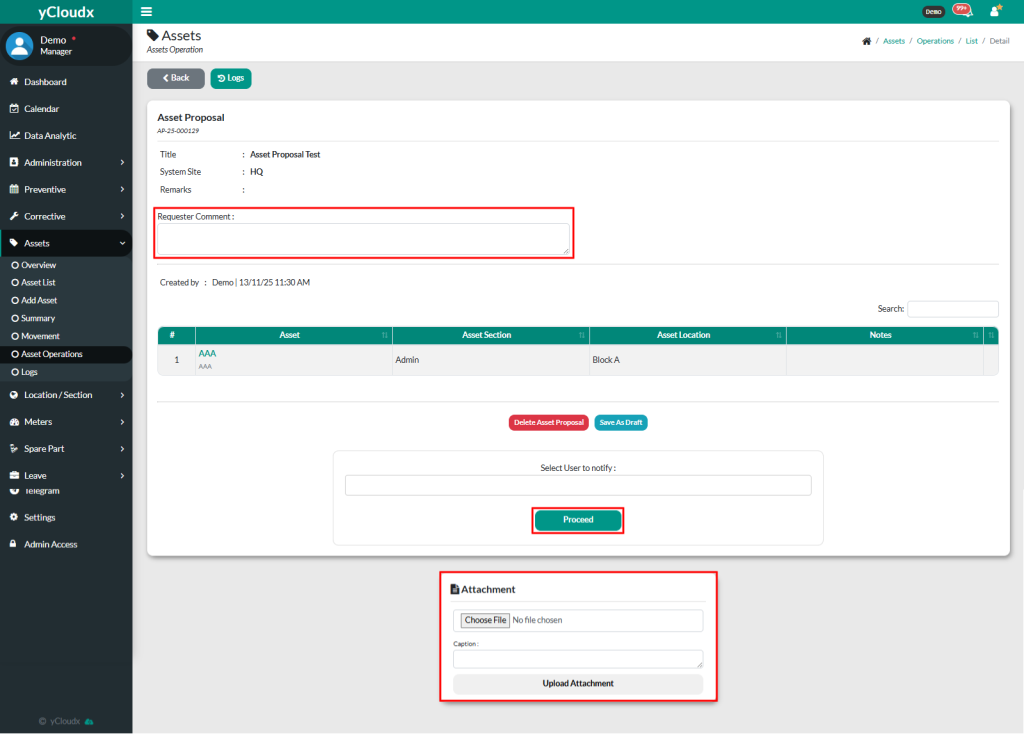
- Once click Add, user will go back to asset proposal page, to recheck the details before submit the request by clicking Proceed button
- User also able to insert their comment as requester and insert attachment if needed
- Once completed, user can view the assets proposal in Assets > Asset Operations. The asset will only appear in Assets > Asset List once the asset proposal has been approved by the person in charge (PIC)