How Can We Help?
How to apply for asset transfer?
- Proceed to the Assets > Asset Operations
- Click + Asset Operations button
- Fill in the details such as the Title, System Site, Type (Asset Transfer) and Remarks (if any)
- After ensuring all data is entered correctly, then click Save button

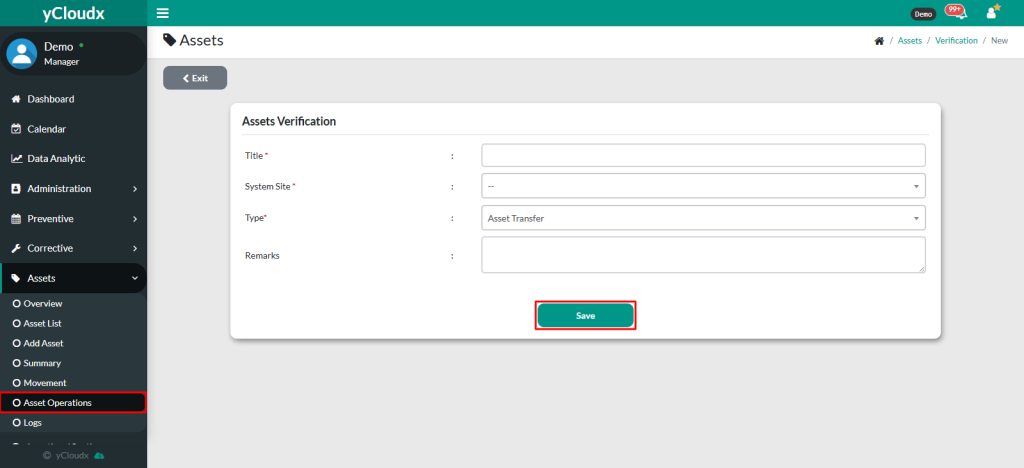
- Once saved, the system will bring user to the second page
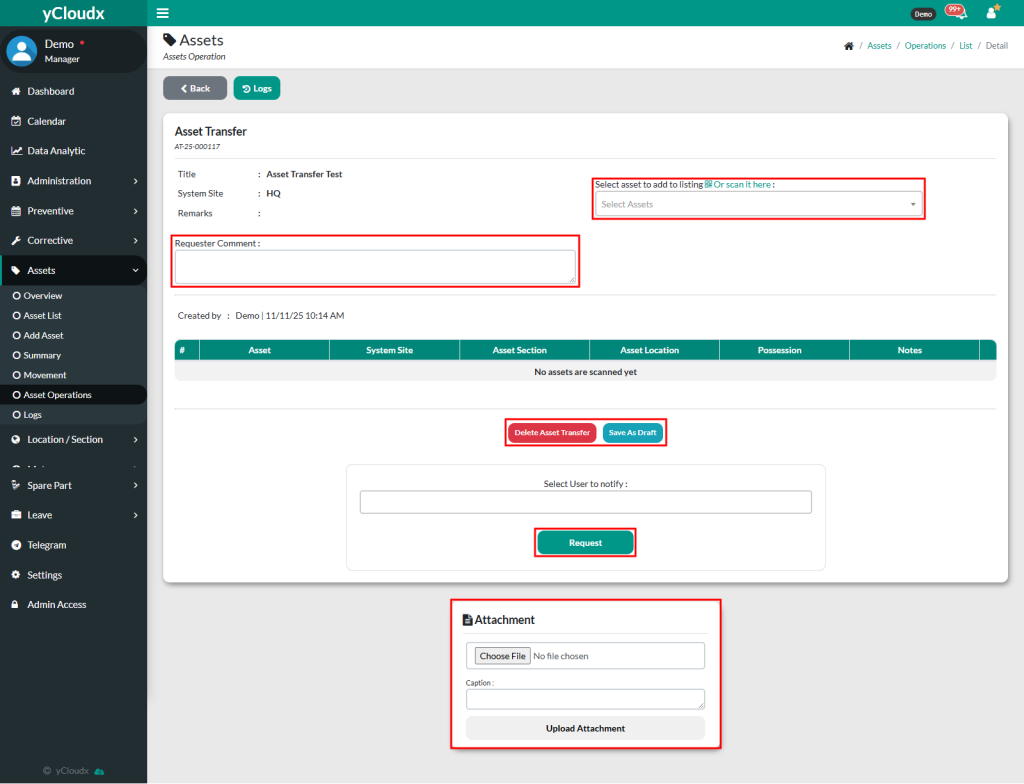
- On the second page, user able to insert their comment as requester for each asset transfer
- User can select asset from the list or scan the asset to be verified, update the system site, asset section, asset location, possession and add notes for each asset if needed
- User able to insert attachment for each asset operation
- User may click Save as Draft to keep as draft or Request if all data is confirmed. To delete the process, user can click Delete Asset Transfer
- Once the button is clicked, a pop-up will appear based on the selected action, whether it is saved as draft, requested or deleted
- Once completed, user can view the assets transfer in Assets > Asset Operations